Tabular Editor 3 Editions
This document provides an overview and comparison of the different editions of Tabular Editor 3.
Note
Tabular Editor 3 licenses are per developer. In other words, only the persons who use the Tabular Editor 3 product will need a license.
The editions differ in two ways: which data modeling scenarios they support - that is, where the model you are editing may live - and which features are available once it is open. The two sections below cover each in turn. Anything not listed in either is available in every edition.
Tip
Upgrading a license takes effect straight away. Activate the new key under Help > About Tabular Editor, and the features it unlocks are available without restarting Tabular Editor 3.
Supported Data Modeling Scenarios
The first difference between the editions is which types of tabular data modeling scenarios they support. To understand this difference, consider that Analysis Services (Tabular) exists in a number of different "flavors":
- Power BI Desktop (make sure you understand the limitations)
- Power BI Premium through the XMLA Endpoint (Premium Per User, Premium Capacity [A, EM or P SKUs], Fabric Capacity [F SKUs])
- SQL Server (2016+) Analysis Services (Editions: Developer, Standard, Enterprise)
- Azure Analysis Services (Tiers: Developer, Basic, Standard)
We consider the highlighted flavors of Analysis Services to be Enterprise-Tier, and as such, these may only be used with Tabular Editor 3 Enterprise Edition.
We draw that line where Microsoft draws its own, between per-user and capacity-based licensing:
- Premium Per User is a per-seat license. The person editing the model is the person who paid for the seat. That matches how Business Edition is licensed: a personal, non-transferable key tied to a single user. See Personal vs. Transferable licenses.
- Premium Capacity (P SKUs), Embedded Capacity (A/EM SKUs) and Fabric Capacity (F SKUs) are shared, organization-scale deployments. Models hosted there are team-owned and serve many consumers, which is the scenario Enterprise Edition is built and priced for.
The same logic applies outside Power BI. Business Edition covers the SQL Server Analysis Services Developer and Standard editions along with the Azure Analysis Services Developer and Basic tiers. Those tiers serve a single developer or a small-scale deployment. SQL Server Analysis Services Enterprise Edition and Azure Analysis Services Standard tier host organization-scale models, so they require Enterprise Edition.
Important
Tabular Editor only allows editing data models using Compatibility Level 1200 or higher. This is the default on any instance of Analysis Services starting from SQL Server 2016. For the same reason, Tabular Editor does not support Excel PowerPivot, as this uses an earlier Compatibility Level.
Please refer to the matrix below for the full overview of supported scenarios:
| Scenario / Edition | Desktop | Business | Enterprise |
|---|---|---|---|
| External Tool for Power BI Desktop | ✔ | ✔ | ✔ |
| Load/save model metadata to disk** | ❌ | ✔* | ✔ |
| Workspace Mode*** | ❌ | ✔* | ✔ |
| Power BI Premium Per User | ❌ | ✔ | ✔ |
| SQL Server Developer Edition | ❌ | ✔* | ✔ |
| SQL Server Standard Edition | ❌ | ✔ | ✔ |
| SQL Server Enterprise Edition | ❌ | ❌ | ✔ |
| Azure AS Developer Tier | ❌ | ✔* | ✔ |
| Azure AS Basic Tier | ❌ | ✔ | ✔ |
| Azure AS Standard Tier | ❌ | ❌ | ✔ |
| Power BI Premium Capacity (P SKUs) | ❌ | ❌ | ✔ |
| Power BI Embedded Capacity (A/EM SKUs) | ❌ | ❌ | ✔ |
| Fabric Capacity (F SKUs) | ❌ | ❌ | ✔ |
*Note: Enterprise Edition is required if the Analysis Services data model contains perspectives or tables with multiple partitions (does not apply to Power BI Desktop or Power BI Premium Per User models).
**Note: Supported file formats are: .pbip (Power BI Project) .pbit (Power BI Template), .bim (Analysis Services model metadata), .vpax (VertiPaq Analyzer) and database.json (Tabular Editor folder structure), TMDL (Tabular Model Definition Language).
***Note: Workspace Mode allows Tabular Editor 3 to simultaneously save model metadata to disk and synchronize a database on any of the editions of Analysis Services or Power BI supported by the Tabular Editor 3 edition purchased.
Feature availability
Beyond the scenarios above, these are the features whose availability depends on the edition. Trial and Consultancy licenses carry the Enterprise Edition feature set.
Editing and refreshing
| Feature | Desktop | Business | Enterprise |
|---|---|---|---|
| Save with supporting files for Fabric | ❌ | ✔ | ✔ |
| Advanced Refresh dialog and refresh override profiles | ❌ | ✔ | ✔ |
| Automatic metadata backups on save and deploy | ❌ | ✔ | ✔ |
Ordinary refresh commands, and everything else in the refresh menu, are available in every edition. The three rows above are unavailable in Desktop Edition because that edition works only against a live Power BI Desktop model, with no model files of its own.
Modeling features
| Feature | Desktop | Business | Enterprise |
|---|---|---|---|
| Perspectives in an Analysis Services model* | N/A | ❌ | ✔ |
| Tables with multiple partitions in an Analysis Services model* | N/A | ❌ | ✔ |
| Perspectives and multiple partitions in a Power BI model | ✔ | ✔ | ✔ |
| Direct Lake tables | ❌ | ❌ | ✔ |
| Semantic Bridge for Databricks Metric Views | ❌ | ❌ | ✔ |
*Note: Desktop Edition cannot open Analysis Services models at all, which is why these two rows do not apply to it. See Modeling Restrictions below for what happens when a model uses one of these features on an edition that does not allow it.
The Semantic Bridge row covers the Import from Metric View YAML... command and the SemanticBridge object in C# scripts; on a lower edition the menu item is not shown, and a script that reaches for the service reports that it is unavailable at your license level.
AI Assistant, MCP server and administrator policies
The AI Assistant and the MCP server themselves are available in every edition. What Enterprise Edition adds is the ability to govern them centrally, and a record of what they did.
| Feature | Desktop | Business | Enterprise |
|---|---|---|---|
| AI Assistant and MCP server | ✔ | ✔ | ✔ |
| General administrator policies, such as turning off updates, telemetry, scripts, macros or AI entirely | ✔ | ✔ | ✔ |
| Capping what the AI Assistant and the MCP server may reach, per resource | ❌ | ❌ | ✔ |
| Locking the AI provider, endpoint, model, organization and project, or restricting them to an allowlist | ❌ | ❌ | ✔ |
| Publishing Custom Instructions for the organization, and ruling out the ones a user keeps | ❌ | ❌ | ✔ |
| Withholding individual MCP tools, and fixing the MCP server port | ❌ | ❌ | ✔ |
Allowing only C# scripts and macros that stay within the model (BlockUnsafeScripts) |
❌ | ❌ | ✔ |
| A local audit record of AI Assistant and MCP server activity | ❌ | ❌ | ✔ |
Important
The Enterprise policies are never quietly ignored on an edition that is not licensed for them. If any of their values is set on a machine running Desktop or Business Edition, the AI Assistant and the MCP server refuse to start and name the values that require Enterprise Edition, and a BlockUnsafeScripts value stops every script and macro from running until an Enterprise license is activated. Roll them out against the licenses you actually have. See Policies.
Licensing and support
| Feature | Desktop | Business | Enterprise |
|---|---|---|---|
| Free DAX Optimizer access | ❌ | ❌ | ✔ |
| Help > Dedicated Support for contacting our support team directly | ❌ | ❌ | ✔ |
| Simultaneous installations per user | 1 | 2 | 3 |
The DAX Optimizer integration itself is in every edition; what Enterprise Edition adds is eligibility for a redemption code that gives you DAX Optimizer access at no extra cost.
Available in every edition
Everything else is the same whichever edition you hold, including the DAX editor and IntelliSense-like code assist, DAX queries and the DAX debugger, DAX scripts and user-defined functions, C# scripts and macros, the Best Practice Analyzer with its built-in rules, the Perspective Editor, the Metadata Translation Editor, the Calendar Editor, table groups, diagrams, data preview and pivot grids, the VertiPaq Analyzer integration, the DAX Package Manager, the Table Import Wizard and unsaved change indicators.
Modeling Restrictions
We restrict a few data modeling operations inside Tabular Editor 3 as well, corresponding to the restrictions on certain Microsoft service tiers (Azure Analysis Services Basic Tier, SQL Server Analysis Services Standard Edition, and Power BI Premium-Per-User).
Specifically, Azure AS Basic Tier and SQL Server Standard Edition do not support perspectives or multiple partitions, and as such, SSAS/Azure AS models using these features require TE3 Enterprise Edition. DirectQuery is not restricted by your Tabular Editor 3 edition at all: whether you can use it depends on the server the model is hosted on.
Similarly, Power BI Premium-Per-User workspaces do not support Direct Lake datasets, which is why Power BI models using this feature also requires TE3 Enterprise Edition.
| Model type | Feature | Desktop | Business | Enterprise |
|---|---|---|---|---|
| Azure AS / SSAS | Perspectives | N/A | ❌ | ✔ |
| Azure AS / SSAS | Multiple partitions | N/A | ❌ | ✔ |
| Azure AS / SSAS | DirectQuery* | N/A | ✔ | ✔ |
| Azure AS / SSAS | Direct Lake | N/A | N/A | N/A |
| Power BI | Perspectives** | ✔ | ✔ | ✔ |
| Power BI | Multiple partitions** | ✔ | ✔ | ✔ |
| Power BI | DirectQuery | ✔ | ✔ | ✔ |
| Power BI | Direct Lake | ❌ | ❌ | ✔ |
*Note: Analysis Services on SQL Server Standard Edition pre-2019 does not support DirectQuery. Nor does Azure AS Basic Tier. Learn more.
**Note: Perspectives and multiple partitions are available in Business Edition for Power BI models, but the model's CompatibilityMode must be set to PowerBI. See Change compatibility mode for instructions.
Desktop Edition works only against a live Power BI Desktop model, which is why the Analysis Services rows do not apply to it.
If you attempt to open a model that uses one or more of the modeling restrictions listed above, while on a TE3 Business Edition license, you will see the error message below:
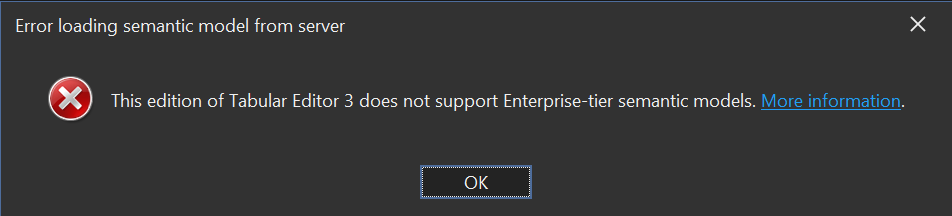
A model that acquires one of these while you are editing it is not silently mangled either: the save is refused, and the message names the feature and, for multiple partitions, the tables in question. Adding a perspective to an Analysis Services model is prevented up front - the Perspectives folder is not shown in the TOM Explorer and the command to create one is unavailable.
Important
Tabular Editor can only be used as an external tool for Power BI Desktop when the Power BI report (.pbix, .pbip or .pbit) file contains a data model (Import, DirectQuery or Composite). Reports using Live connection are not supported since these reports do not contain a data model. More information.
Personal vs. Transferable licenses
Our Desktop Edition and Business Edition uses a personal licensing model. This means, that a user receives their own personal License Key, which can not be shared or transferred to other users. When a user no longer requires the product, their subscription should be cancelled to avoid recurring payments.
Our Enterprise Edition uses a transferable licensing model. The license administrator receives a single License Key, which is then valid for a number of named users up to the quantity purchased. Users are identified by their e-mail address, which is entered the first time a user activates an installation of Tabular Editor 3. The first time a user activates a Tabular Editor 3 installation using the license key, they are "locked-in" to that license for 30 days. After the 30 day lock-in period, a user can be removed from the license at any time, freeing up the license slot for another user. License administrators can view and manage users through our self-service portal. You may also contact support for assistance.
Multiple installations
Each Tabular Editor 3 user is allowed to install the tool on multiple machines depending on the type of license held:
| Desktop | Business | Enterprise | |
|---|---|---|---|
| Simultaneous installations | 1 | 2 | 3 |
Note
Sharing a single license among multiple users is against our licensing terms.
You can deactivate an existing installation at any time from within the tool itself, by choosing the "Change license key..." option under "Help > About Tabular Editor". You can also deactivate an installation through our self-service portal by navigating to the "Licenses" tab.
If you need more simultaneous installations of Tabular Editor 3 than listed above, please contact licensing@tabulareditor.com.
Enterprise Edition Volume Discounts
Our Enterprise Edition is priced in tiers, according to the following table (similar discount rates apply to monthly commitment):
| Tier | Yearly price per seat |
|---|---|
| First 5 seats | $950.00 USD |
| Next 6-10 seats | $900.00 USD |
| Next 11-20 seats | $850.00 USD |
| Next 21-50 seats | $800.00 USD |
| Seats 51 and above | $750.00 USD |
As an example, if you need 12 seats, the price breaks down as follows:
Seats 1-5:    5 x 950.00 = $  4,750.00
Seats 6-10:   5 x 900.00 = $  4,500.00
Seats 11-12:  2 x 850.00 = $  1,700.00
--------------------------------------
Total                      $ 10,950.00
======================================
If you require more than 100 seats, please contact sales for a quote.
Command-line and CI/CD licensing
Tabular Editor 3 is a desktop application. It has no command-line interface of its own. For automated deployments and CI/CD pipelines, use either TabularEditor.exe (the Tabular Editor 2 command line) or the cross-platform Tabular Editor CLI (te). Both are separate from the Tabular Editor 3 desktop application.
Do I need a license to run CI/CD pipelines? No.
TabularEditor.exe(TE2 CLI) and the Tabular Editor CLI (te, during preview) do not require a Tabular Editor 3 license. Only developers using the Tabular Editor 3 desktop application need a license.
At General Availability the Tabular Editor CLI will require a license; pricing is still being finalized and will be announced ahead of GA.