Tabular Editor 3 Preferences
Tabular data model development processes and workflows differ greatly from organization to organization. To ensure that the tool can fit into as many of these workflows as possible, Tabular Editor 3 is highly customizable - not just in terms of the user interface's look and feel, but also on more advanced topics such as web proxies, updates and feedback, row limits, timeouts, schema compare preferences, etc.
This article describes the Tabular Editor 3 Preferences dialogs and the settings that you can control through it.
To access the preferences dialog, go to Tools > Preferences.
Note
All Tabular Editor preferences are stored for each Windows user profile, in the %localappdata%\TabularEditor3 folder. It is possible to migrate your settings to another machine by simply copying the contents of this folder.
Tip
Use the search box at the top of the Preferences dialog to quickly find specific settings.
Tabular Editor > Features
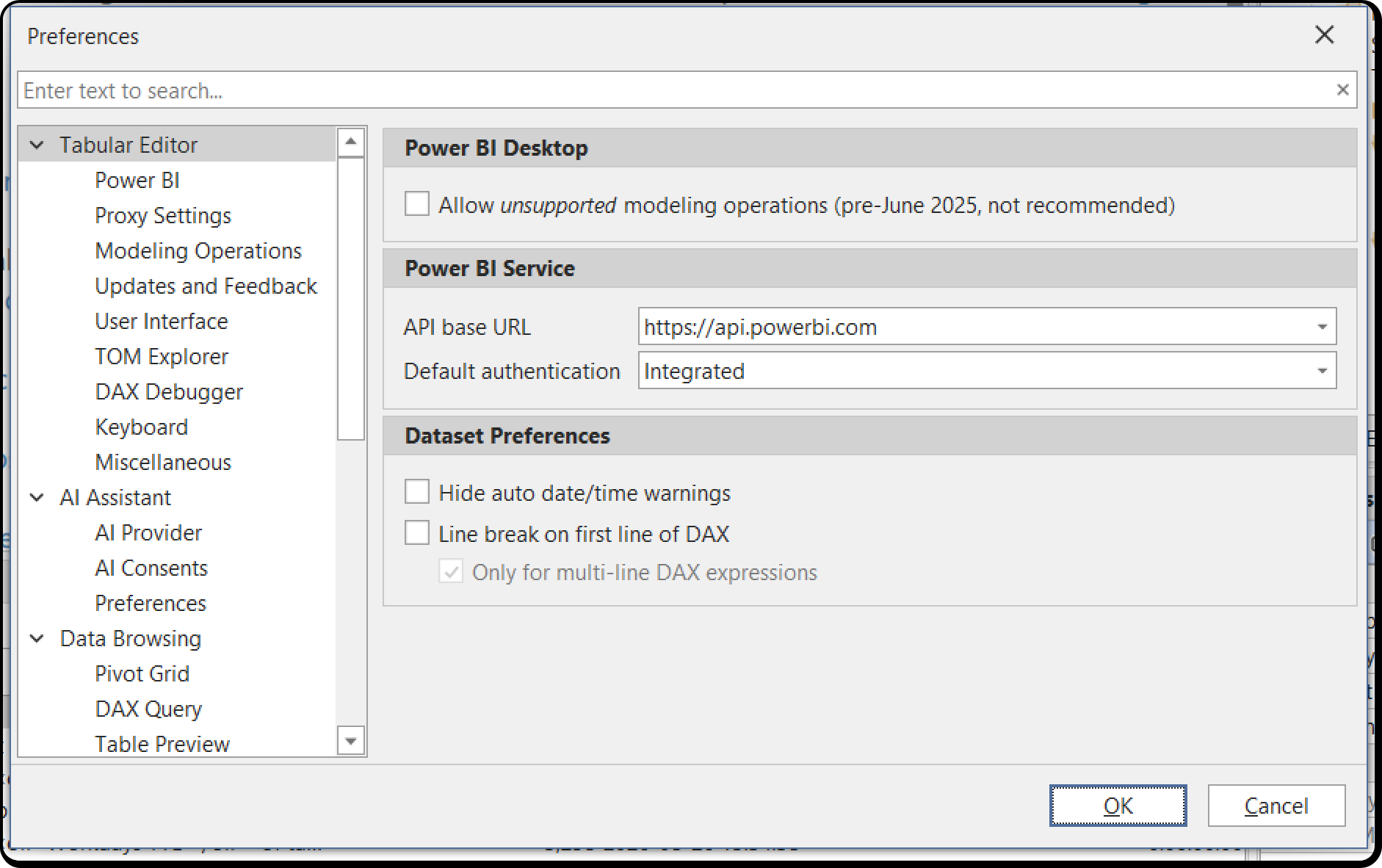
Power BI
Allow unsupported editing (disabled)
This option is only relevant when Tabular Editor 3 is used as an external tool for Power BI Desktop. When checked, all TOM data modeling properties are available for editing when connected to an instance of Power BI Desktop. It's generally recommended to leave this unchecked, to make sure that you do not accidentally make changes to your Power BI file, that are not supported by Power BI Desktop.
Hide auto date/time warnings (disabled)
When checked, warnings about Power BI auto date/time tables will be suppressed. These warnings appear when the "Auto date/time" setting in Power BI Desktop is enabled, which creates calculated tables that trigger warnings in Tabular Editor 3's built-in DAX analyzer.
Line break on first line of DAX (disabled)
In Power BI Desktop it is common to insert a line break on the first line of a DAX expression, due to the way the formula bar displays the DAX code. If you often switch back and forth between Tabular Editor and Power BI Desktop, consider enabling this option to have Tabular Editor 3 insert the line break automatically.
Only for multi-line DAX expressions (enabled)
When "Line break on first line of DAX" is enabled, this sub-setting controls whether the line break is added only for multi-line DAX expressions. When checked, single-line expressions are left unchanged.
Default Power BI authentication mode (Integrated)
Select the default authentication method (Integrated, ServicePrincipal, or MasterUser) to use when connecting to Power BI datasets.
Best Practice Analyzer
Scan for Best Practice violations in the background (enabled)
If unchecked, you will have to explicitly run a Best Practice Analysis from inside the Best Practice Analyzer tool window, to view if there are any violations. If checked, the scan happens continuously on a background thread whenever changes are made. For very large models, or models with very complex Best Practice rules, this may cause issues.
Built-in BPA rules (enabled for new users)
Choose whether to enable, disable, or be prompted about using Tabular Editor's built-in Best Practice Analyzer rules. The built-in rules cover key best practices across formatting, metadata, model layout, DAX expressions, and translations. New installations will have built-in rules enabled by default.
Notifications
Data refresh notification (enabled)
When checked, a notification is displayed when a data refresh operation completes.
DAX Formula Fix-up
Enable formula fix-up (enabled)
Automatically adjusts references in DAX expressions when objects are renamed or moved. This feature ensures that your DAX code remains valid when you reorganize your model.
Enable formula fix-up on paste (enabled)
Automatically adjusts references in DAX expressions when pasting objects. This is useful when copying measures or calculated columns between tables or models.
Direct Lake
Auto-refresh on save (enabled)
Automatically refresh Direct Lake tables when saving changes to ensure data is current. This ensures that your Direct Lake model stays in sync with the underlying data source.
Tabular Editor > Updates and Feedback
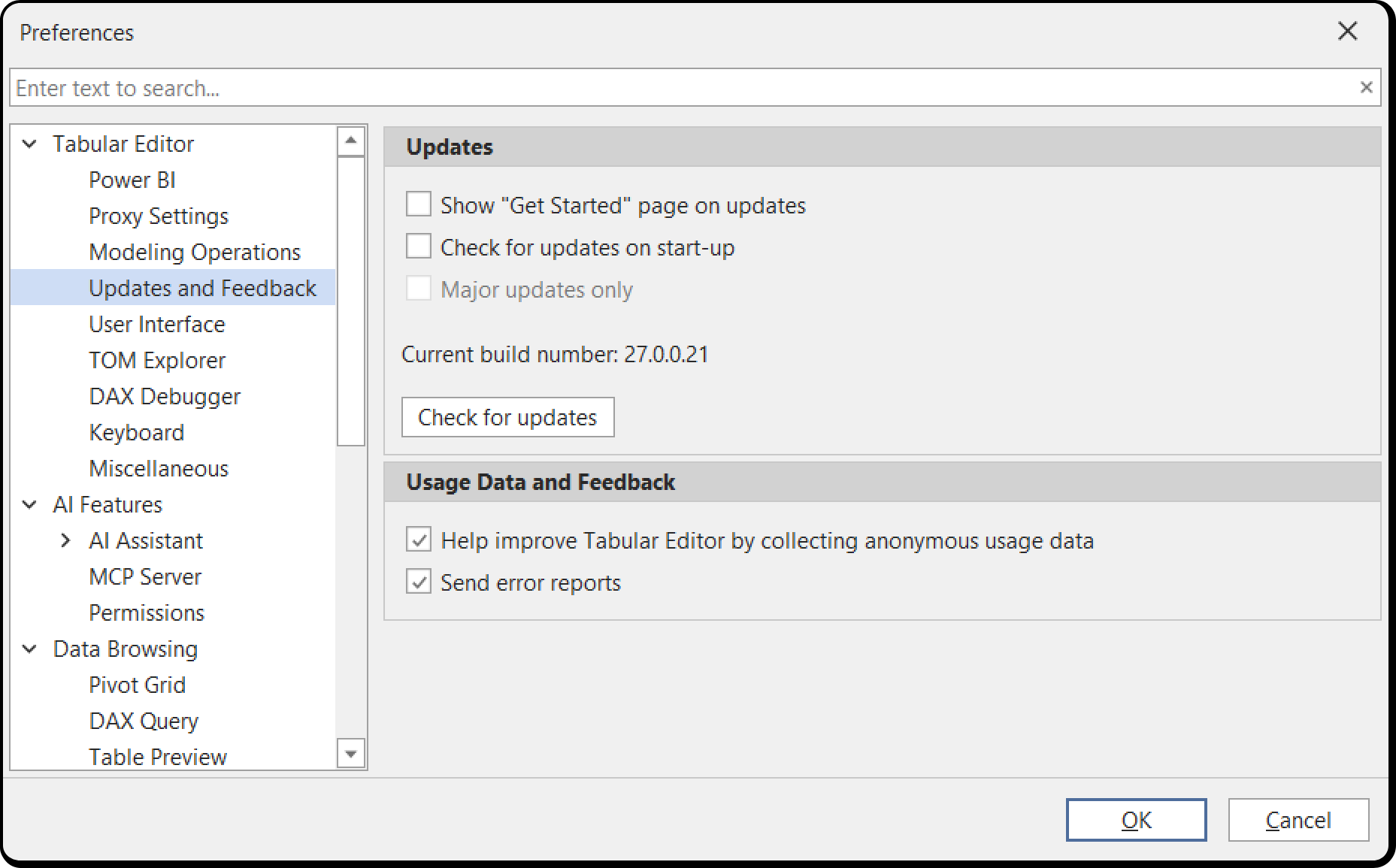
Updates
Show "Get Started" page on updates (enabled)
When checked, the Get Started page opens automatically the first time you run Tabular Editor after it has been updated. It appears on updates, not on every start-up. You can open it at any time from Help > Get Started.
Check for updates on start-up (enabled)
When checked, Tabular Editor will check for new versions when the application starts. This ensures you stay up to date with the latest features and bug fixes.
Major updates only (disabled)
When checked, only major version updates trigger notifications. Minor and patch updates are ignored. This setting is only available while Check for updates on start-up is checked.
The version you are running is shown below these settings, along with a Check for updates button that runs the check immediately.
Managed by your organization
Where an administrator has configured policies, a read-only Managed by your organization section is appended to this page listing every policy value Tabular Editor found, as Name = value. Hover over an entry to see which registry key and hive it came from.
A value Tabular Editor could not interpret is listed with an (invalid) marker rather than being left out. That marker is the fastest way to find the typo behind a policy that appears to do nothing, so check here first when a policy is not taking effect.
The section is absent when no policy applies. Settings that a policy locks or limits are shown read-only elsewhere in this dialog, and in the Tools > MCP Server... dialog, with a tooltip saying so.
Usage Data and Feedback
Help improve Tabular Editor by collecting anonymous usage data (enabled)
Data does not contain any personally identifiable information, nor any information about the structure or content of your data models. If you would still like to opt out of telemetry, uncheck this.
Send error reports (enabled)
In cases of crashes, Tabular Editor displays an option for sending a crash report when this is checked. Crash reports are very helpful when debugging, so please leave this checked if you don't mind!
Tabular Editor > Deployment
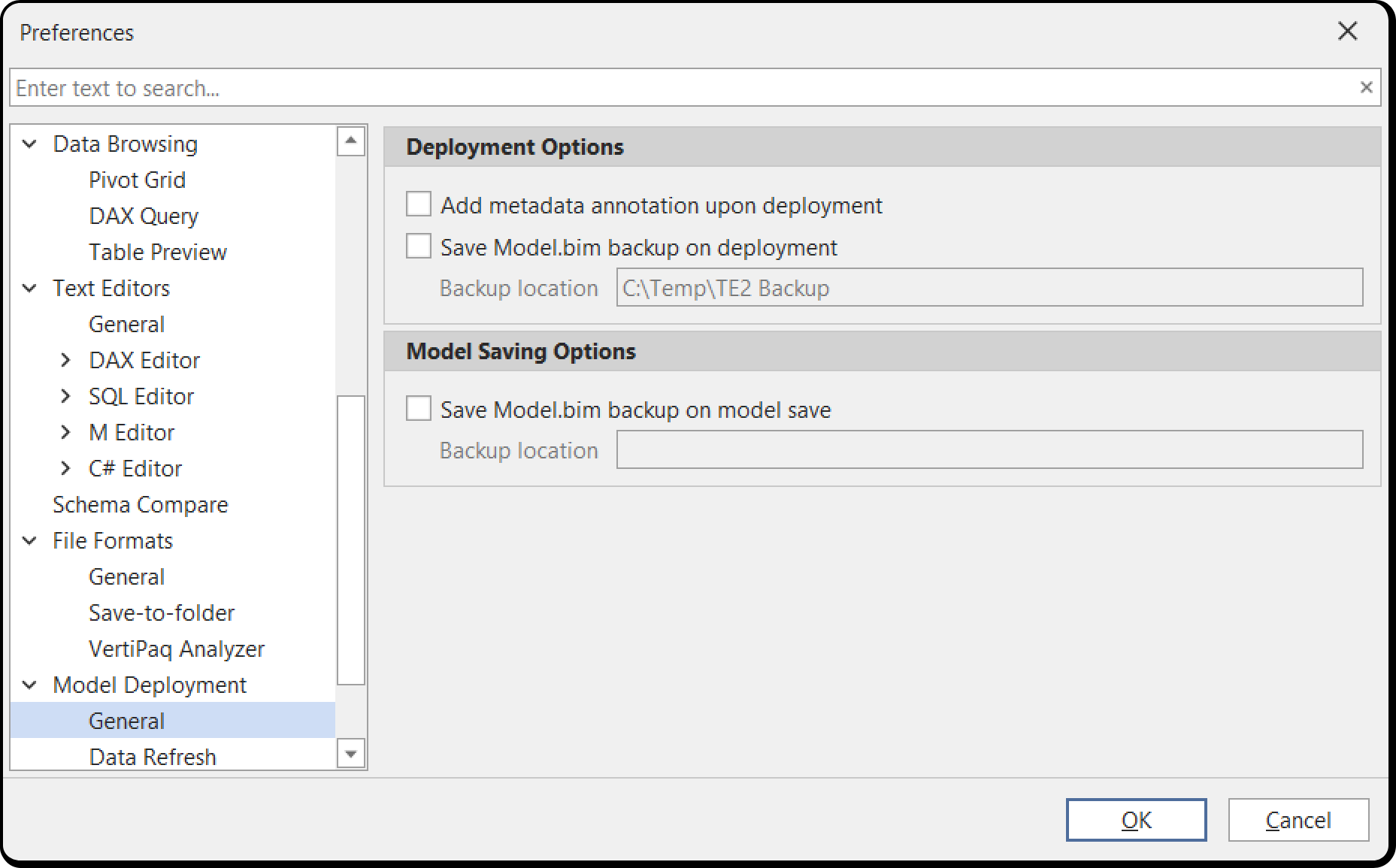
Configure which types of objects are deployed by default when using the deployment wizard:
Deploy data sources (disabled)
Include data source definitions when deploying. Enable this if you want data source connection strings and settings to be deployed along with your model changes.
Deploy partitions (disabled)
Include partition definitions when deploying. Enable this if you want partition configurations to be deployed along with your model changes.
Deploy refresh policy partitions (disabled)
Include incremental refresh policy partitions when deploying. This controls whether partitions created by incremental refresh policies are deployed.
Deploy model roles (disabled)
Include role definitions when deploying. Enable this if you want Row-Level Security (RLS) and Object-Level Security (OLS) roles to be deployed.
Deploy model role members (disabled)
Include role member assignments when deploying. Enable this if you want user and group assignments to security roles to be deployed.
Deploy shared expressions (disabled)
Include shared expressions (M expressions) when deploying. Enable this if you want Power Query shared expressions to be deployed.
Deployment Metadata
Annotate deployment metadata (disabled)
Add deployment timestamp and user information as annotations on deployed objects. This can be useful for tracking when and by whom model changes were deployed.
Backup Settings
Backup on save (enabled)
Create a backup of the model when saving changes locally. This provides a safety net in case you need to revert changes.
Save backup location
Specify the folder where save backups are stored. By default, backups are not created unless a location is specified.
Backup on deploy (enabled)
Create a backup of the target model before deploying changes. This allows you to restore the previous version if needed.
Backup location
Specify the folder where deployment backups are stored. By default, backups are not created unless a location is specified.
Tabular Editor > Defaults
New model compatibility level (1600)
Set the default compatibility level for newly created models. The choices are the same as in the New Model dialog:
| Level | Target |
|---|---|
| 1200 | Azure Analysis Services / SQL Server 2016+ |
| 1400 | Azure Analysis Services / SQL Server 2017+ |
| 1500 | Azure Analysis Services / SQL Server 2019+ |
| 1600 | Azure Analysis Services / SQL Server 2022+ |
| 1700 | Azure Analysis Services / SQL Server 2025+ |
| 1706 | Power BI / Fabric |
1700 is the highest level Analysis Services supports; 1706 is the highest overall and is Power BI and Fabric only.
Use latest compatibility level as default (enabled)
Automatically use the latest available compatibility level for new models. When enabled, this overrides the specific compatibility level setting above, and the dropdown is disabled.
New models use workspace database (enabled)
When creating a new model, automatically create a workspace database on Analysis Services. This allows you to immediately test and query your model during development.
Default save mode (AlwaysAsk)
Choose whether to always save as a file (.bim), folder (multiple JSON files), TMDL (Tabular Model Definition Language), or always ask when saving. Options: AlwaysAsk, File, Folder, TMDL.
Use PBIX file name when saving to disk (enabled)
When saving a model loaded from a PBIX file, use the PBIX filename as the default. This maintains naming consistency between Power BI files and saved model metadata.
Create user options for new models (enabled)
Automatically create .tmuo (Tabular Model User Options) files for new models. These files store user-specific settings like diagram layouts and window positions.
Tabular Editor > Keyboard
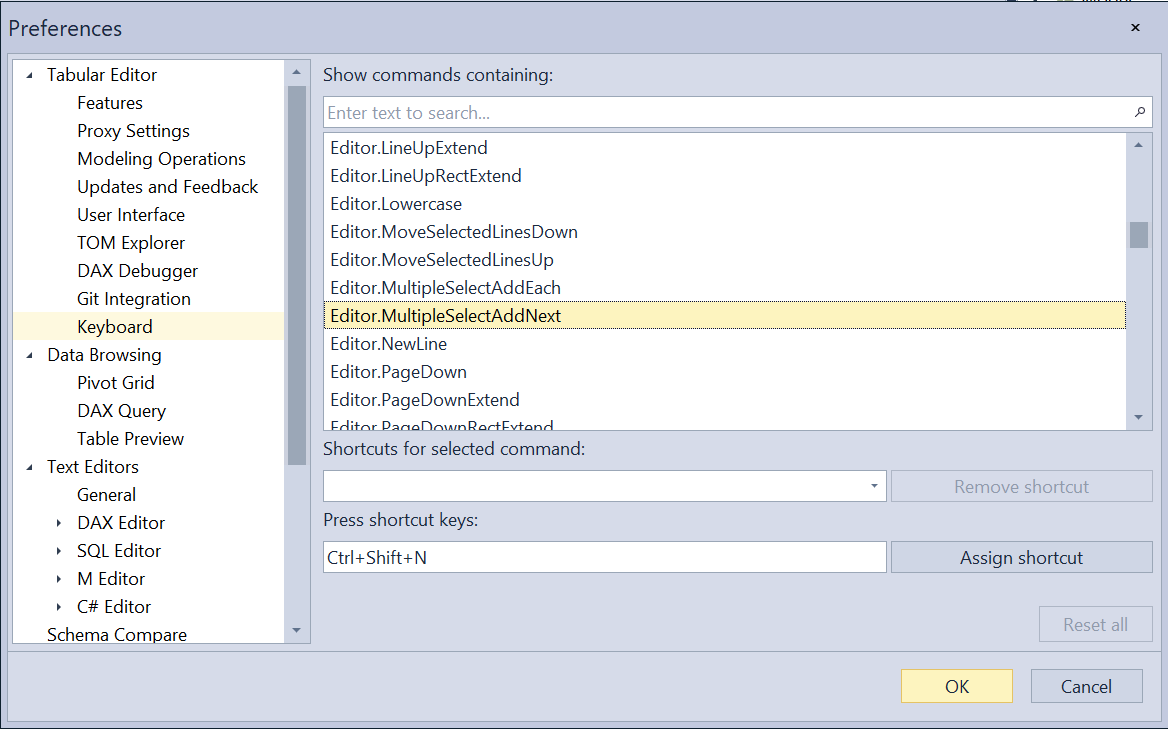
Configure keyboard shortcuts for all Tabular Editor commands. Use the search functionality to quickly find specific commands and assign or modify their keyboard shortcuts to match your preferred workflow.
Tabular Editor > TOM Explorer
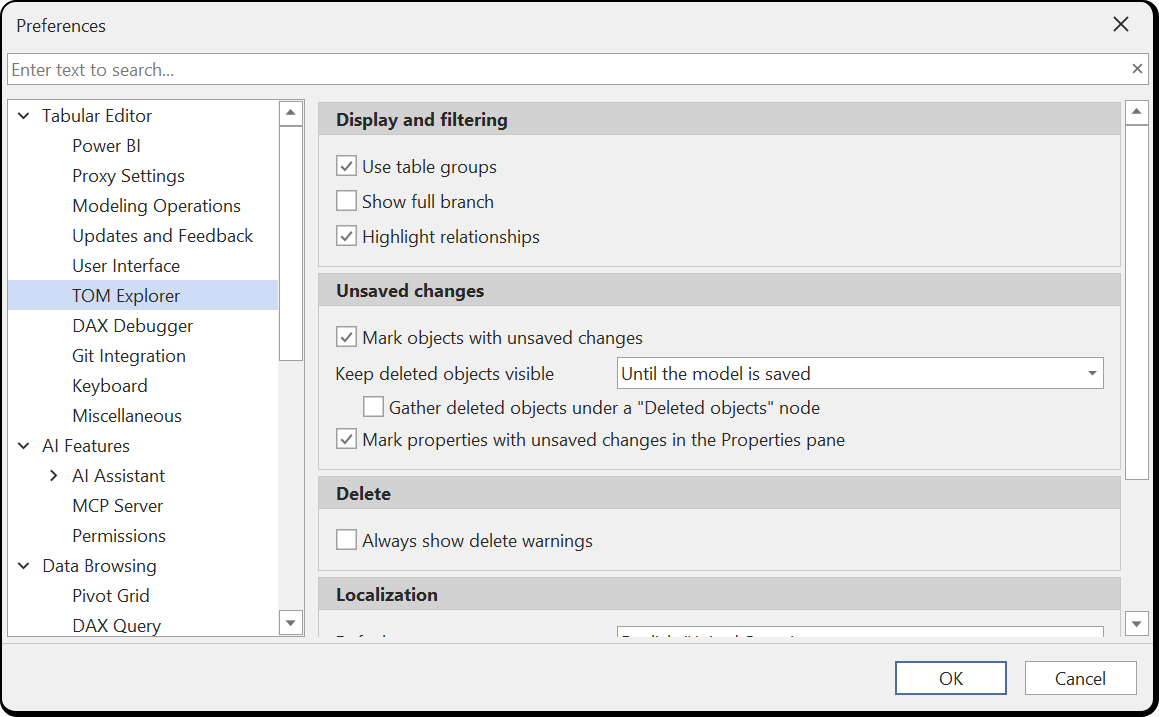
Control how the TOM (Tabular Object Model) Explorer presents the model, and what happens to the objects you delete.
The toggles that decide which object types appear in the tree, such as measures, columns, hierarchies, partitions, display folders and hidden objects, are not preferences. They live on the TOM Explorer view toolbar, where you can change them per model without opening this dialog.
Display and filtering
Use table groups (enabled)
Group your tables in the TOM Explorer, for example to keep calculation groups, dimensions and fact tables apart. Tabular Editor records a table's group in an annotation on the table itself, so the grouping travels with the model. It is internal to Tabular Editor: no other client tool, Power BI Desktop included, shows it. See Table Groups.
Show full branch (disabled)
When you filter the tree, Tabular Editor shows the objects that match your filter string together with their parents. Enable this to also show every child of a match, whether or not the children match the string themselves.
Highlight relationships (enabled)
Highlight the relationships that involve the table or column you have selected, so you can see at a glance what a column is joined to.
Unsaved changes
These settings control how unsaved changes are indicated in the TOM Explorer and the Properties view.
Mark objects with unsaved changes (enabled)
Highlight objects in the TOM Explorer that differ from the last saved version of the model, using a tinted row and a badge on the object's icon: orange for edited objects, green for added objects and red for deleted objects. Tables, folders and groups that contain changed objects get a hatched fill. When disabled, deleted objects still stay visible according to the setting below, and the Show changes toolbar filter still works. Use Color blindness mode under User Interface > Accessibility to mark added objects in teal instead of green.
Keep deleted objects visible (Until the model is saved)
How long deleted objects remain visible in the TOM Explorer, struck through, where they used to be. Right-click a deleted object and choose Restore to bring it back. Options:
- Never: Deleted objects disappear from the TOM Explorer at once.
- Until the model is saved: Deleted objects are treated as unsaved changes and disappear when the model is saved.
- Until the model is closed: Deleted objects stay visible, and restorable, for the whole editing session, even across saves.
Gather deleted objects under a "Deleted objects" node (disabled)
Show the deleted objects of a table, hierarchy, role or table group together under a single Deleted objects node at the end of their container, instead of each where it used to be. Right-click the node and choose Restore to bring back all of them at once.
Mark properties with unsaved changes in the Properties pane (enabled)
Highlight properties in the Properties view that differ from the last saved version of the model, using a tinted row. When disabled, the Show changes toolbar filter in the Properties view still works.
Delete
Always show delete warnings (disabled)
If you prefer Tabular Editor 3 to prompt you to confirm all object deletions, enable this setting. Otherwise, Tabular Editor 3 will only prompt you to confirm multi-object deletions, or deletions of objects that are referenced by other objects.
Note
All delete operations in Tabular Editor 3 can be undone by hitting CTRL+Z.
Localization
These settings decide the format string Tabular Editor writes when you pick the Currency number format for an object in the Properties pane.
Default currency (English (United States))
The formatting convention to base the currency format string on. Pick the locale whose currency symbol, decimal separator and digit grouping you want.
Use a custom currency symbol (disabled)
Supply your own symbol instead of taking one from the locale above. The three settings below apply only while this is checked.
Custom currency symbol
The symbol to use. Enter the symbol on its own, without the number; whitespace is ignored.
Custom currency symbol position (Before number)
Whether the symbol goes before or after the numeric value.
Put a space between the number and symbol (disabled)
Separate the symbol from the numeric value with a space.
Tabular Editor > Copy/Paste
Control what metadata is included when copying objects:
Include translations (enabled)
Copy translation metadata with objects. When enabled, any translations defined for the copied object will also be copied.
Include perspectives (enabled)
Copy perspective membership with objects. When enabled, the copied object will belong to the same perspectives as the original.
Include RLS (enabled)
Copy Row-Level Security expressions with objects. This applies when copying tables that have RLS rules defined.
Include OLS (enabled)
Copy Object-Level Security settings with objects. This applies when copying objects that have OLS restrictions.
Tabular Editor > Perspectives
Control how perspective membership is handled:
Inherit perspective membership for new objects (disabled)
Newly created objects automatically inherit perspective membership from their parent. For example, a new measure would automatically be added to the same perspectives as its parent table.
Inherit perspective membership for relocated objects (disabled)
Objects that are moved inherit perspective membership from their new parent. This is useful when reorganizing your model structure.
Inherit when adding table to perspective (enabled)
Automatically add all table objects (columns, measures, hierarchies) when a table is added to a perspective.
Inherit when removing table from perspective (enabled)
Automatically remove all table objects when a table is removed from a perspective.
Tabular Editor > Schema Compare
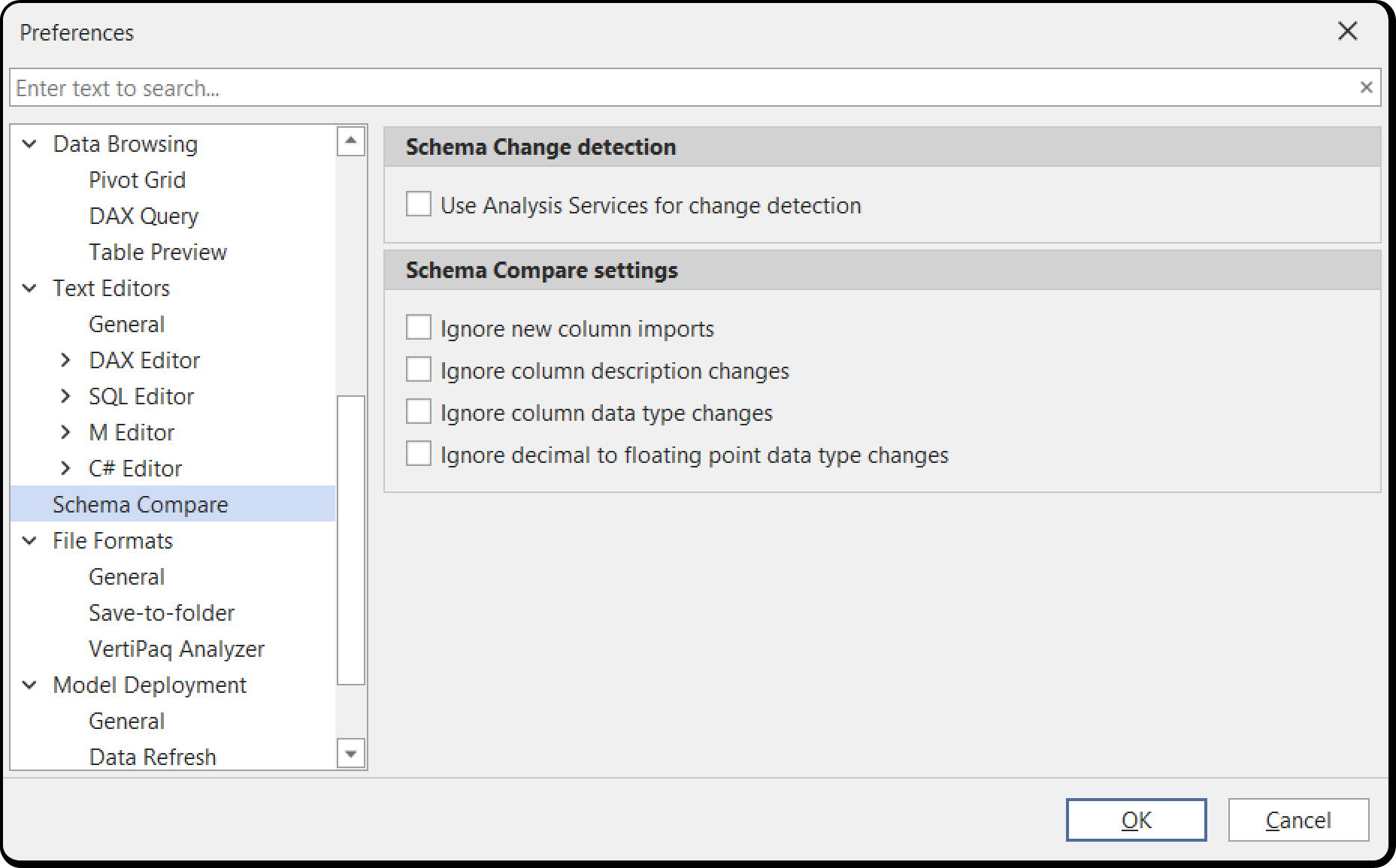
Configure which changes are ignored during schema comparison when updating table schemas:
Ignore Import mode changes (disabled)
Don't flag changes to Import mode properties. Enable this if you want to ignore changes between Import, DirectQuery, and Dual modes during schema comparison.
Ignore data type changes (disabled)
Don't flag column data type changes. Enable this if you want to ignore data type changes during schema comparison.
Ignore description changes (disabled)
Don't flag changes to object descriptions. Enable this if you don't want to see description changes in the schema comparison.
Ignore decimal to double changes (disabled)
Don't flag changes between decimal and double data types. This is useful when working with data sources that don't distinguish between these types.
Prioritize Analysis Services schema detector (disabled)
Use Analysis Services metadata as the source of truth for schema detection. When enabled, Tabular Editor will query the Analysis Services instance directly instead of using the data source provider's schema information.
Tabular Editor > Save to Folder/File
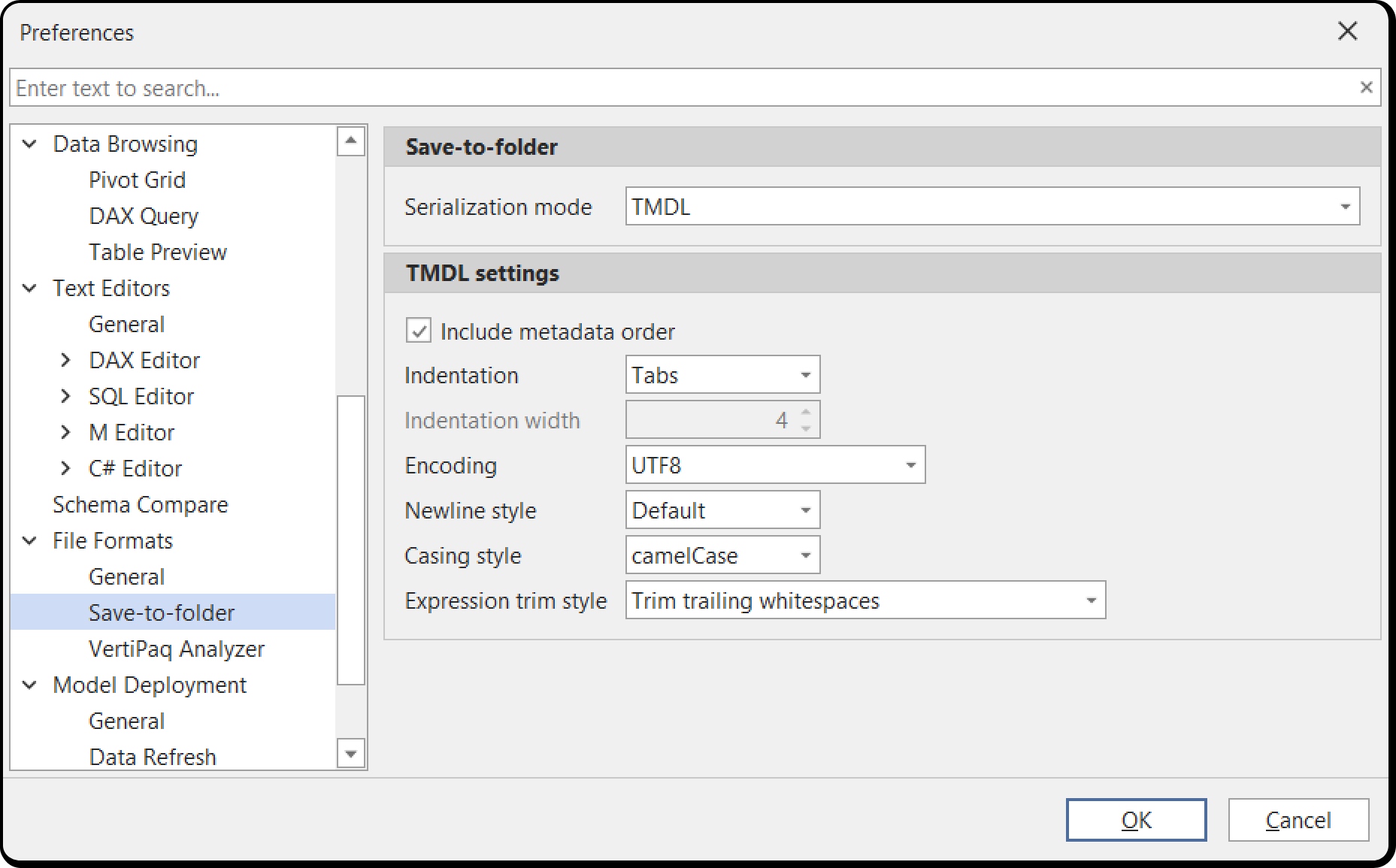
Serialization Mode
Use TMDL format (disabled)
Save model metadata using the Tabular Model Definition Language (TMDL) format instead of JSON. TMDL is the modern format recommended for version control and collaboration.
Use recommended serialization settings (enabled)
Apply recommended settings for folder-based serialization (overrides custom settings). When enabled, Tabular Editor uses best practices for saving models to folders, optimized for version control.
Legacy (JSON) Serialization Settings
Prefix filenames (disabled)
Add numeric prefixes to filenames for ordering. This can help maintain a consistent file order in file explorers.
Local relationships (enabled)
Store relationship definitions with individual tables instead of in a central location. This makes it easier to see which relationships belong to each table when using version control.
Local perspectives (enabled)
Store perspective membership with individual objects instead of in a central location. This reduces merge conflicts in version control.
Local translations (enabled)
Store translations with individual objects instead of in a central location. This reduces merge conflicts in version control.
Levels
Select which object types to serialize at different folder levels. This allows you to organize your model files into a hierarchical structure. The available levels are Data Sources, User Defined Functions (UDFs), Shared Expressions, Perspectives, Relationships, Roles, Tables, Columns, Hierarchies, Measures, Partitions, Calculation Items and Translations.
Ignore inferred objects (enabled)
Don't serialize objects that are automatically inferred by the engine. This reduces clutter in saved metadata.
Ignore inferred properties (enabled)
Don't serialize properties that are automatically inferred by the engine. This keeps saved metadata clean and focused on explicitly set values.
Ignore timestamps (enabled)
Don't serialize timestamp metadata. This is highly recommended for version control as it prevents unnecessary changes in every commit.
Ignore lineage tags (disabled)
Don't serialize Power BI lineage tag metadata. Enable this if you don't want lineage information in your saved metadata.
Ignore privacy settings (disabled)
Don't serialize data source privacy settings. Enable this if you manage privacy settings separately.
Include sensitive data (disabled)
Include sensitive information like passwords in serialized metadata. This is not recommended for security reasons.
Ignore incremental refresh partitions (disabled)
Don't serialize partitions created by incremental refresh policies. Enable this if you want incremental refresh to be managed separately from your saved metadata.
Split multiline strings (enabled)
Split long string values across multiple lines for better readability in version control. This makes it easier to see changes in DAX expressions and other long text properties.
Sort arrays (disabled)
Sort array elements alphabetically for consistent serialization. This can reduce meaningless differences in version control, but may change the logical order of some elements.
TMDL Serialization Settings
Indentation mode (tabs)
Choose between tabs or spaces for indentation in TMDL files. Tabs are the default and recommended option.
Indentation spaces (4)
When using spaces, specify the number of spaces per indentation level.
AI Features
The parent page carries the two settings that apply to every AI feature, the chat and the MCP server alike.
Check for knowledge base updates on startup (enabled)
The AI Assistant searches a local copy of the Tabular Editor documentation. When checked, Tabular Editor looks for a newer copy at start-up and downloads it if one is available. This is the only outbound request any AI feature makes on its own.
Audit log
Open audit folder opens this computer's record of what the AI Assistant and the MCP server did: permission decisions, which tools were called and how each one ended, and the full text of any script that was run or handed over for review. Prompts, replies and data values are never recorded. The record is an Enterprise Edition feature: on Desktop and Business nothing is recorded and the button is not shown. See AI audit log.
AI Features > AI Assistant
Connection settings for the AI Assistant chat. The AI Provider child page renders here. See AI Assistant for what each provider needs.
Choose provider (None)
Which AI provider the chat talks to: OpenAI, Anthropic, Azure OpenAI or Custom (OpenAI-compatible). The fields below change with your choice. An administrator can lock this to a single provider, or narrow the list, by policy.
Base URL / Service endpoint
Where requests are sent. OpenAI and Anthropic supply a default and the field is optional. Azure OpenAI and Custom have no default, so an endpoint is required.
API Key
Your own key for the chosen provider. It is stored encrypted on this machine in Preferences.json. Tabular Editor ships no built-in key and never proxies your requests.
OpenAI Organization ID and OpenAI Project ID
Optional, and shown for the OpenAI provider only. Use them where your OpenAI account bills or scopes usage per organization or project.
Model name (Deployment for Azure OpenAI)
Which model to use. For OpenAI and Anthropic this is a dropdown filled from an online catalog, so it is empty until the catalog has been fetched once on this machine. For Azure OpenAI the field is labelled Deployment and takes the name you gave the deployment, which is not necessarily the name of the underlying model. Leaving it blank uses the provider's default, except for Azure OpenAI and Custom, which have none.
AI Features > AI Assistant > Preferences
How the chat behaves. See AI Assistant for the detail behind each group.
Chat Display
Show selection context indicator (enabled)
Show which model object is currently selected above the chat, so you can see what the assistant will treat as context.
Show custom instructions indicator (enabled)
Show which Custom Instructions were applied above each reply.
Show knowledge base search indicator (enabled)
Show progress while the assistant searches the knowledge base.
Context Compaction
Auto compact (enabled)
Summarize the older part of a conversation automatically as it approaches the model's context limit, so a long conversation can carry on.
Auto compact threshold % (80)
How full the context window gets before compaction runs, as a percentage of the model's own window rather than a fixed number of tokens. Values outside 50 to 100 have no further effect.
C# Script
Allow AI assistant to run C# scripts directly (disabled)
Let the assistant carry out the model change you asked for, instead of writing a script and opening it for you to run. Only scripts the safety analysis considers safe are run this way, meaning scripts that touch model objects and nothing else; anything reaching for files, the network or an external assembly is still handed to you for review. Each run lands as a single undo step.
This setting is unavailable until Model metadata is set to Write on the Permissions page, and it becomes available as soon as you change that dropdown, without closing the dialog. It is also unavailable, with a tooltip saying so, where an administrator has set the DisableCSharpScripts policy. It is off by default deliberately: Model metadata > Write is also what an agent needs over the MCP server, and granting it there must not silently change what the chat does. See Letting the assistant change your model.
Preview changes (enabled)
Show the script preview dialog before a change the assistant made stands, so you can see every model metadata change and accept or cancel it. Cancelling puts the model back and tells the assistant you rejected the change.
AI Features > MCP Server
Settings for the MCP server, which lets an external agent such as Claude Code, GitHub Copilot or Cursor work on the model you have open.
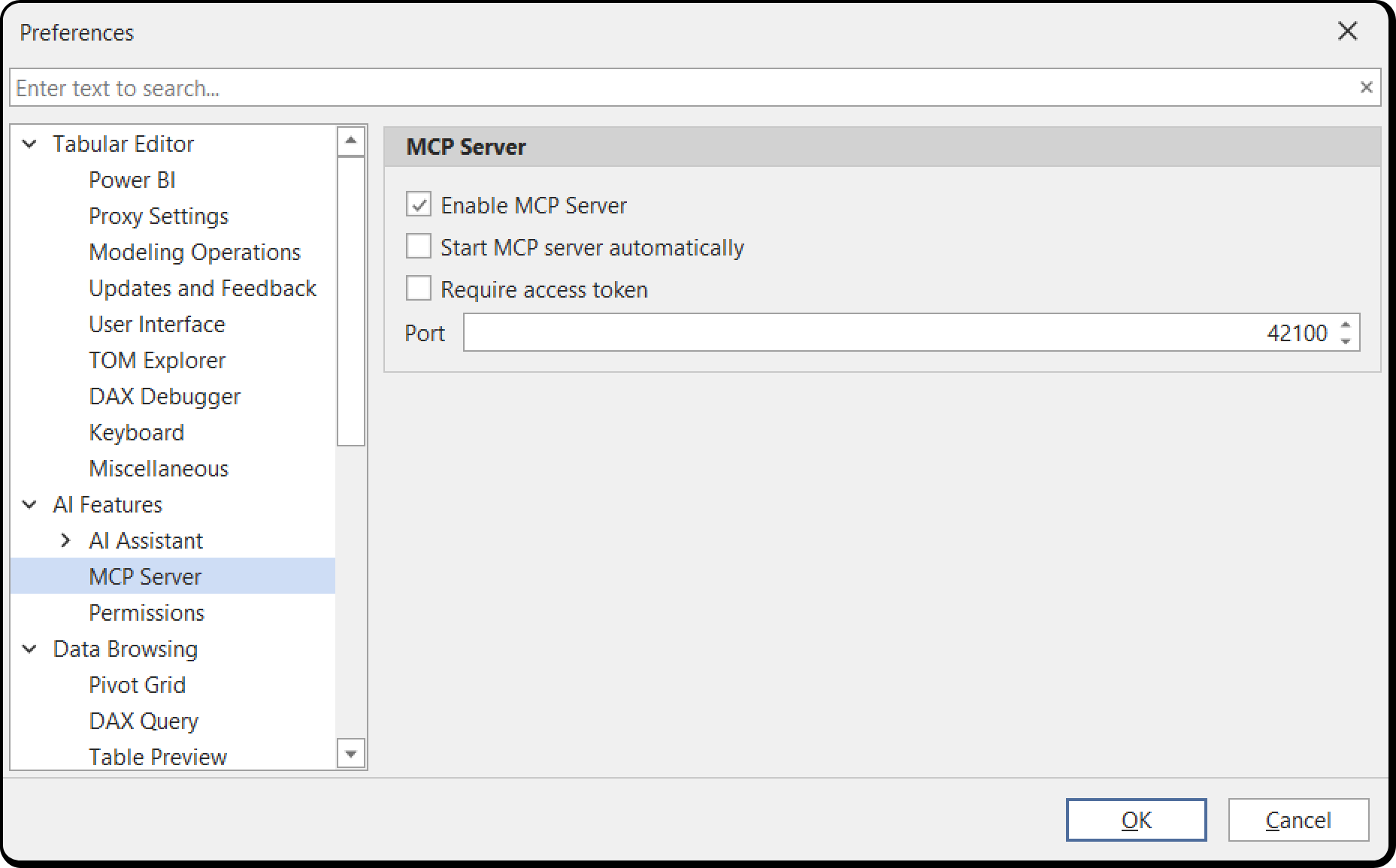
Enable MCP Server (enabled)
Whether the MCP server is available at all. Clearing it stops a running server and removes both the Tools > MCP Server... menu item and the status bar indicator.
Start MCP server automatically (disabled)
Start the server when Tabular Editor starts, so an agent can connect without you starting it by hand. If the port is in use at start-up, the server does not start and no prompt is shown.
Require access token (disabled)
Make agents present a bearer token, shown in the Tools > MCP Server... dialog. The server listens on the loopback interface only, so this matters most on a machine where several people are signed in at once, such as a Remote Desktop or Citrix host, where every session can reach 127.0.0.1. Administrators can enforce it with the RequireMcpAccessToken policy.
Port (42100)
The loopback port the server listens on, from 1024 to 49151. Changing it invalidates existing agent registrations, which point at a fixed address. If the port is taken when you start the server by hand, Tabular Editor offers the next free port it finds.
AI Features > Permissions
One standing grant per resource, governing both the AI Assistant chat and any agent connected over the MCP server. The chat can additionally ask for something a grant does not cover; an agent cannot, so for MCP the grants apply as they stand and only change when the server restarts.
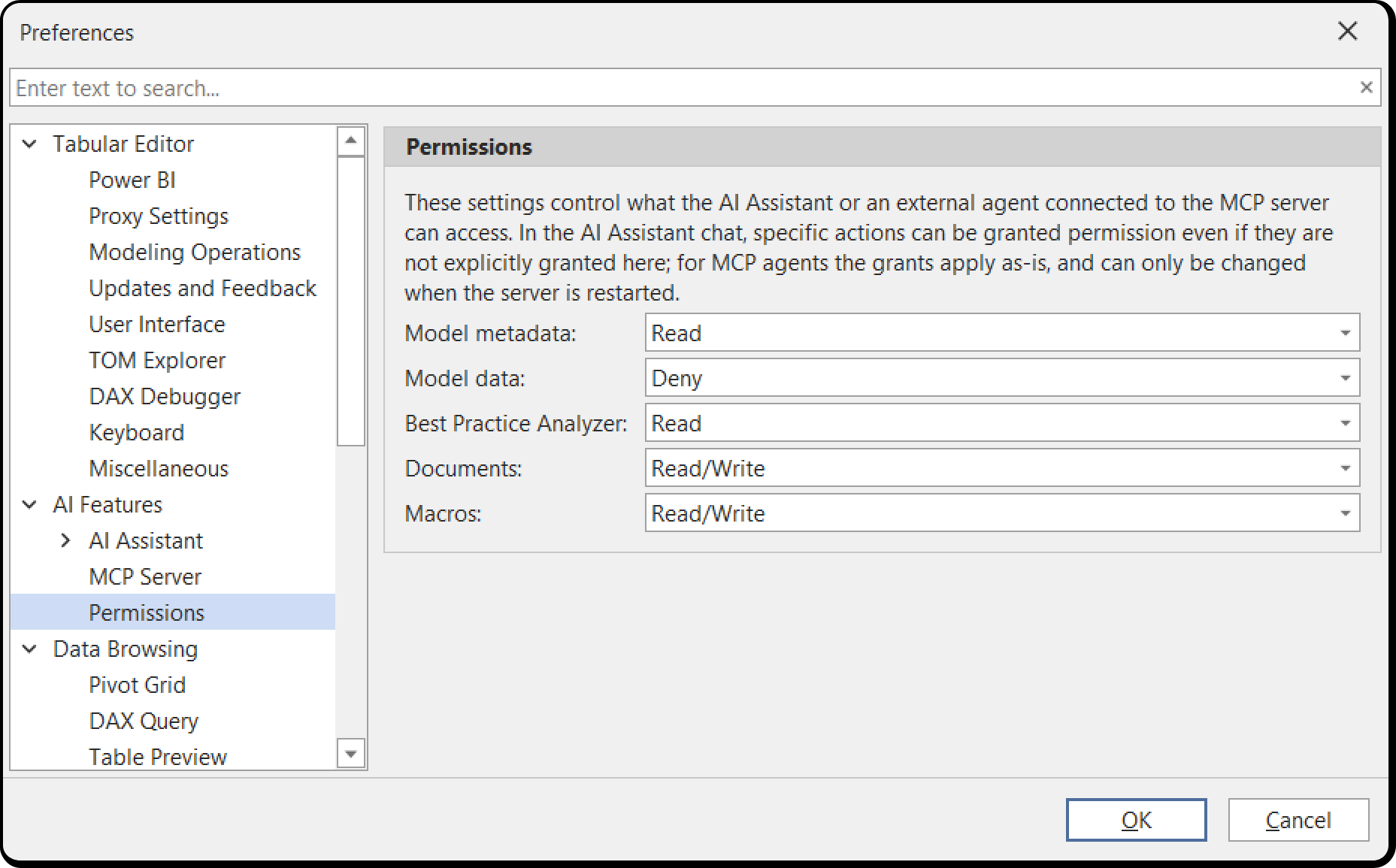
| Resource | Levels | Default | What it covers |
|---|---|---|---|
| Model metadata | Deny / Read / Write | Read | Tables, columns, measures, expressions, descriptions and relationships, plus VertiPaq Analyzer statistics. Write allows changes through C# scripts |
| Model data | Deny / Read | Deny | Data values from your model, such as DAX query results. There is no write level |
| Best Practice Analyzer | Deny / Read / Write | Read | Read lists rules and runs the analysis; Write adds or modifies rules |
| Documents | Deny / Read / Write | Write | Your open C# script and DAX query tabs. Read is their contents; Write creates or modifies them |
| Macros | Deny / Read / Write | Write | Your macro library |
Write covers Read, so there is no need to grant both. Model data is the one resource denied by default, because metadata describes your model while data is its contents.
In the Enterprise, Consultancy and Trial editions an administrator can cap any of these by policy, separately for the chat and for the MCP server. A capped dropdown is shown read-only. See AI Assistant for how the chat asks for what a grant does not cover, and MCP Server for what an agent sees.
Tabular Editor > Miscellaneous
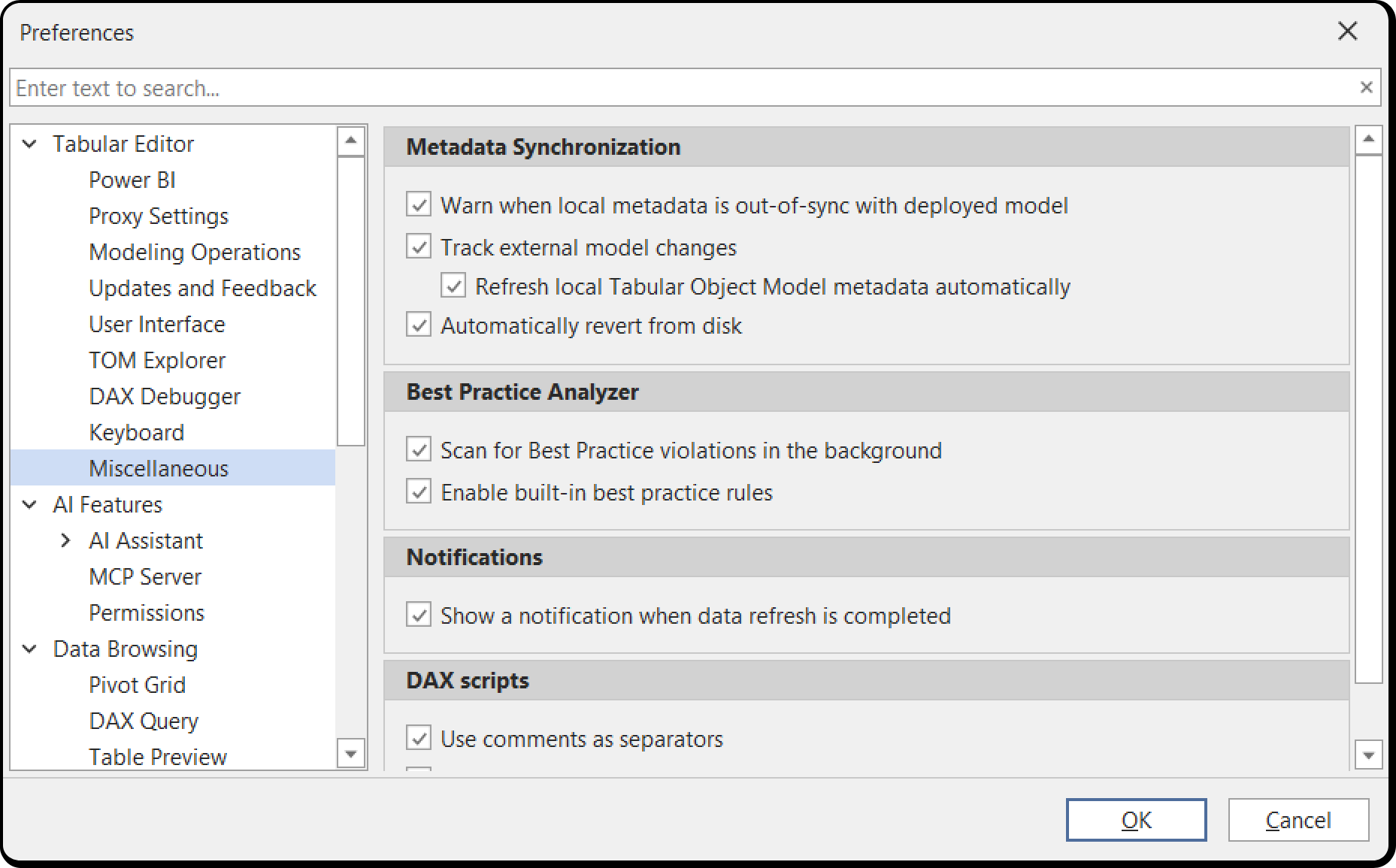
Metadata Synchronization
These settings control how Tabular Editor 3 deals with model metadata that changes outside the application. The first three cover a model loaded from a database on an instance of Analysis Services and rely on an Analysis Services trace. Automatically reload from disk covers a model loaded from a file or a folder, and watches those files directly.
Warn when local metadata is out-of-sync with deployed model (enabled)
When checked, an information bar is displayed inside Tabular Editor, whenever you have made local changes to the model that have not yet been saved to Analysis Services. For example, if you're wondering why a DAX query or a Pivot Grid does not produce the expected result, this could be due to a measure expression being changed in Tabular Editor without saving the change to Analysis Services. The bar disappears when you hit save (Ctrl+S).
Track external model changes (enabled)
Just like Power BI Desktop can detect when an external tool makes a change to the data model, so too can Tabular Editor. This option is only relevant for local instances of Analysis Services (i.e. msmdsrv.exe processes running on the same machine as Tabular Editor). When checked, Tabular Editor starts a trace on Analysis Services and notifies you if external changes are made.
Refresh local Tabular Object Model metadata automatically (enabled)
When the tracing mechanism as described above is enabled, this option allows Tabular Editor to automatically refresh the model metadata when an external change is detected. This is useful if you often switch back and forth between Power BI Desktop and Tabular Editor 3.
Automatically reload from disk (enabled)
When checked, Tabular Editor watches the metadata files the model was loaded from and reloads the model when another application changes them. Unlike the two settings above, this doesn't involve an Analysis Services trace: it watches the files themselves, so it covers a model loaded from a .bim file or from a folder, whether or not a server is involved. If the model has unsaved changes, Tabular Editor asks you which copy to keep. See Auto-reload from disk.
Cleanup orphaned Tabular Editor traces
Normally, Tabular Editor 3 should automatically stop and remove any AS traces started due to the settings above. However, if the application was shut down prematurely, the traces may never be stopped. By clicking this button, all AS traces started by any instance of Tabular Editor will be removed.
Note
The cleanup button is only available when Tabular Editor is connected to an instance of Analysis Services.
Data Browsing > Pivot Grid
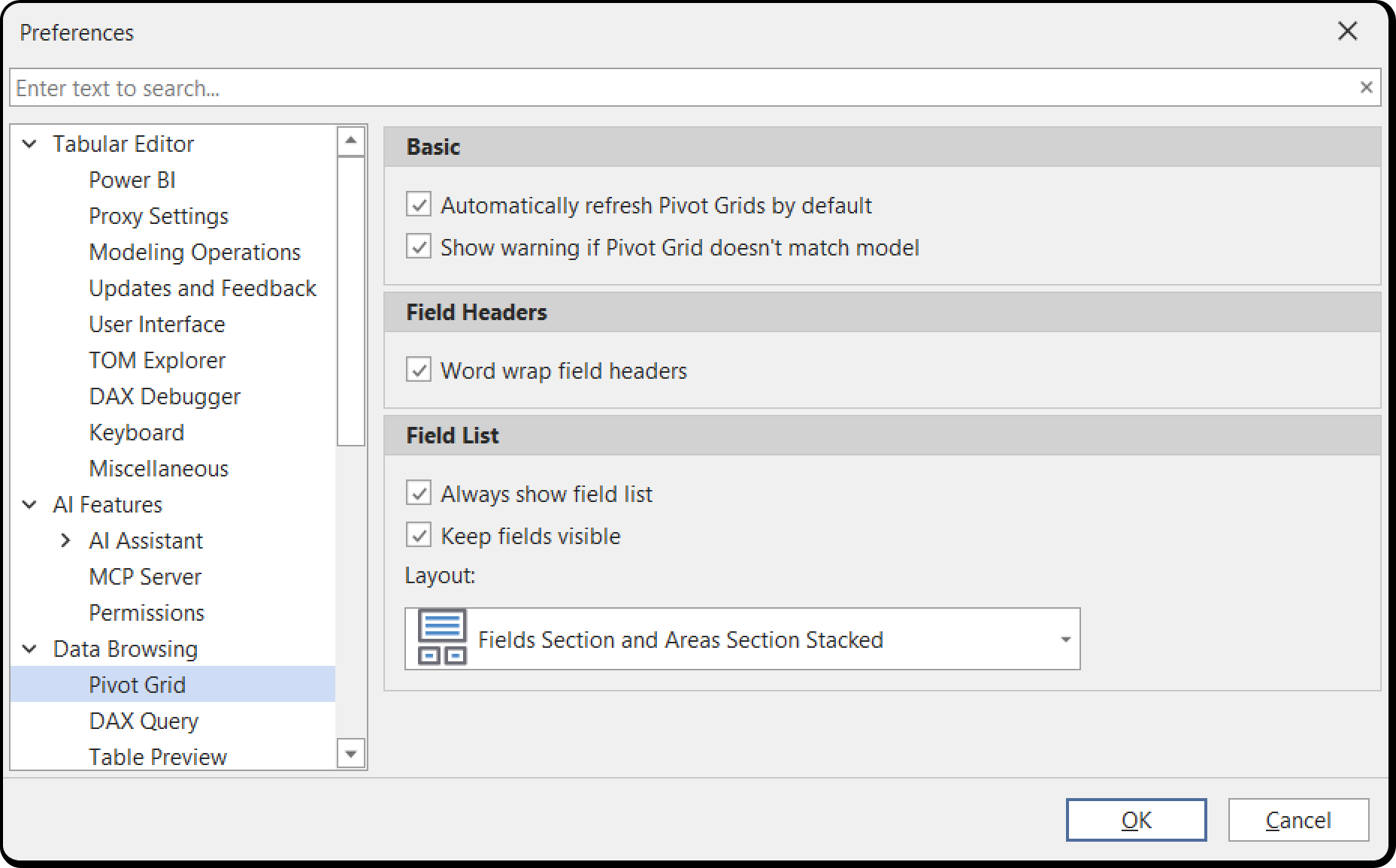
Basic
Auto-refresh pivot grid (enabled)
Automatically refresh pivot grids when model changes are saved. Just like with DAX queries, this allows you to immediately see the impact of changes to measures.
Warn if pivot grid fields mismatch (enabled)
Show a warning when pivot grid field definitions don't match the current model. This can happen if you've deleted or renamed fields used in a saved pivot grid.
Field Headers
Pivot header word wrap (enabled)
Enable word wrapping in pivot grid headers. This makes long field names more readable.
Field List
Always show pivot grid field list (enabled)
Keep the pivot grid field list visible by default. Disable this if you prefer more screen space for the pivot grid itself.
Show all fields in pivot customization (enabled)
Display all available fields in the pivot grid field list by default, including hidden fields.
Pivot grid customization default layout (StackedDefault)
Choose the default layout for the pivot grid field list. Options include:
- StackedDefault: Fields and areas in a single stacked panel
- StackedSideBySide: Fields and areas in side-by-side panels
- TopPanelOnly: Field list at the top only
- BottomPanelOnly2by2: Field list in a 2x2 grid at the bottom
- BottomPanelOnly1by4: Field list in a 1x4 layout at the bottom
Data Browsing > DAX Query
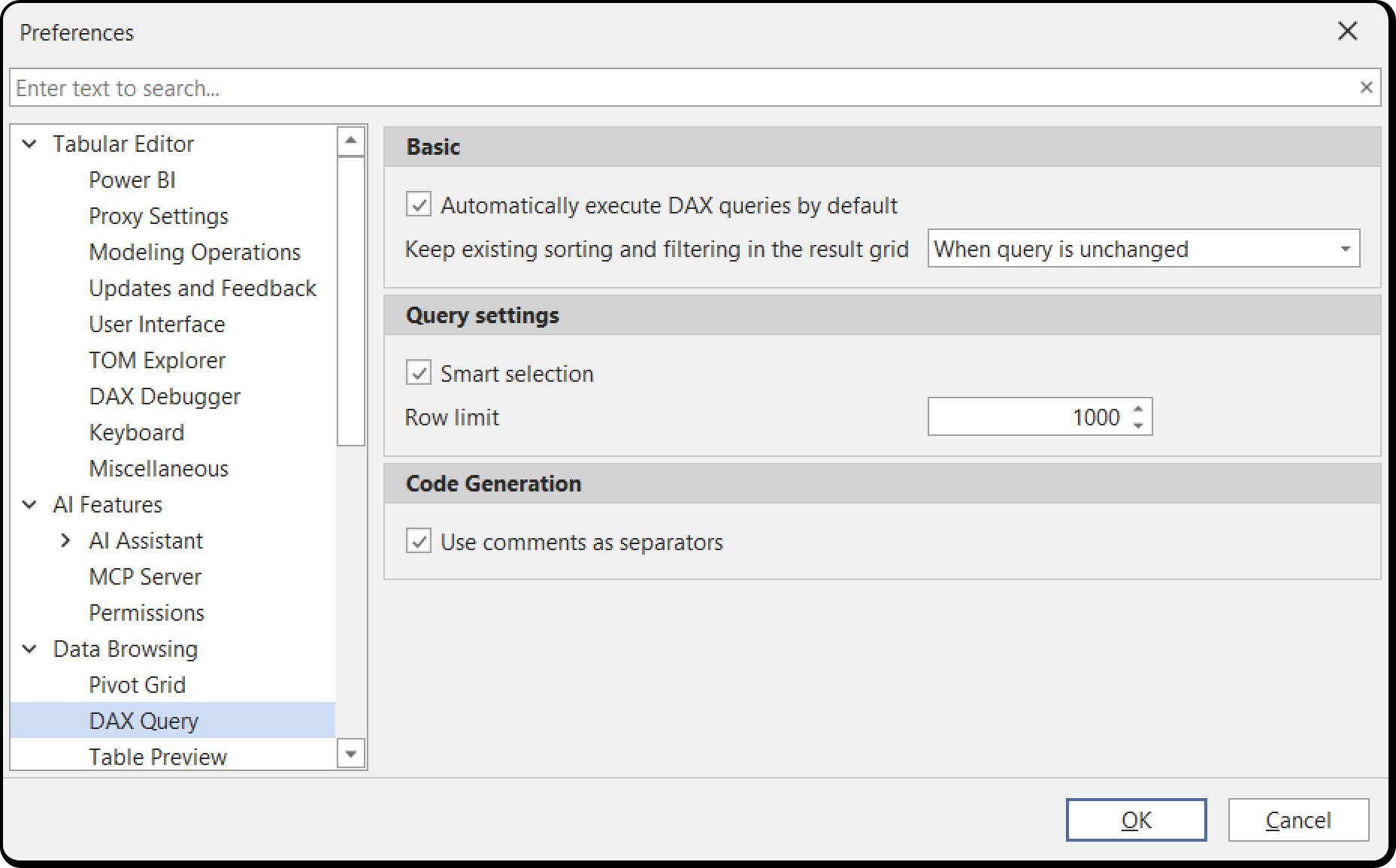
Basic
Automatically execute DAX queries by default (enabled)
New DAX queries open with Auto-execute enabled, so the query re-runs whenever changes are made to the deployed semantic model. Turn it off if you would rather execute each query yourself.
Keep existing sorting and filtering in the result grid (WhenQueryUnchanged)
Control whether to preserve grid filters and sorting when re-executing queries:
- Never: sorting and filtering are always reset when a query is executed
- WhenQueryUnchanged: sorting and filtering are reset only when the query is modified
- Always: sorting and filtering are never reset if the columns still exist
Query settings
Smart selection (enabled)
When you execute part of a query, Tabular Editor turns that selection into a valid DAX query on your behalf, wrapping a scalar expression in curly braces and adding the DEFINE section or the EVALUATE keyword when they are not part of the selection.
Row limit (1,000)
Wraps every EVALUATE statement in a TOPN call, to keep an accidental query over a large table from running for a long time or exhausting memory. Set it to 0 to remove the limit entirely.
Code Generation
Use comments as separators (enabled)
Insert comments into generated object definitions, for example the DEFINE block produced by Define object in query, to make them easier to read.
Data Browsing > Table Preview
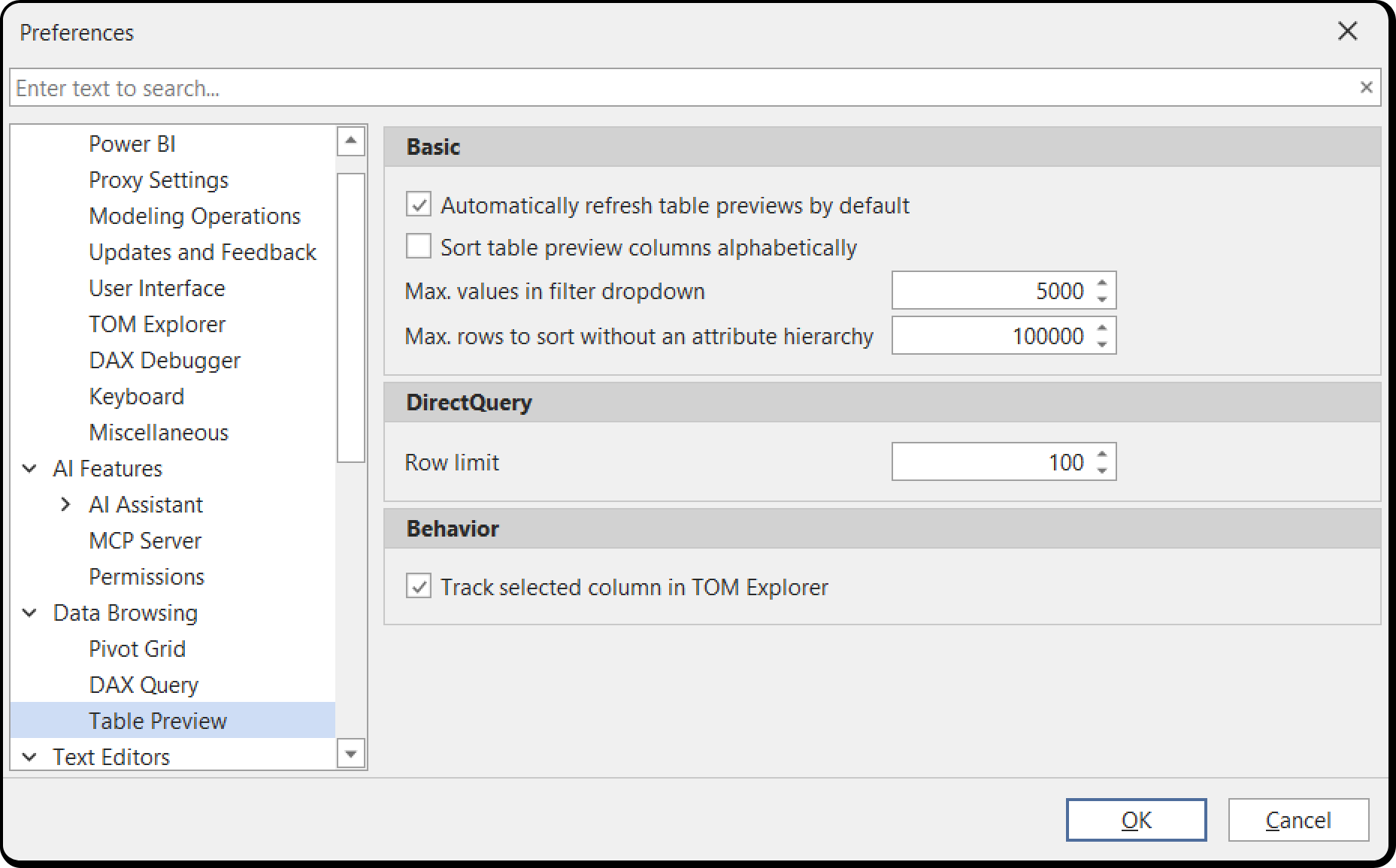
Basic
Automatically refresh table previews by default (enabled)
New table previews open with Auto-refresh enabled, so the preview refreshes whenever changes are made to the deployed semantic model. This is useful when debugging: update an expression in one window while a preview of the same table is open in another.
Sort table preview columns alphabetically (disabled)
When checked, table preview columns are sorted alphabetically by name, matching the order the TOM Explorer view lists a table's columns in. When unchecked (the default), columns appear in the order the engine returns them, which is roughly internal column order and can look arbitrary.
Max. values in filter dropdown (5,000)
Maximum number of distinct values listed in a column's filter dropdown. On a column with more distinct values than this, the values beyond the limit are not listed and cannot be ticked directly. Raising it lists more values at the cost of a heavier query each time the dropdown is opened. Accepts 100 to 1,000,000.
Max. rows to sort without an attribute hierarchy (100,000)
Upper bound on the number of rows Tabular Editor sorts by a column that has no attribute hierarchy to sort on.
DirectQuery
Row limit (100)
Maximum number of rows to retrieve for a table preview in DirectQuery mode. Raise it if you need to see more data, bearing in mind that every row is fetched from the underlying source.
Behavior
Track selected column in TOM Explorer (enabled)
When you select a column in the TOM Explorer view, the open table preview scrolls that column into view and highlights it, which is the quickest way to find one column of a very wide table. The same setting can be turned on and off for a single preview with Track selected column on the Table Preview toolbar.
DAX Editor > General
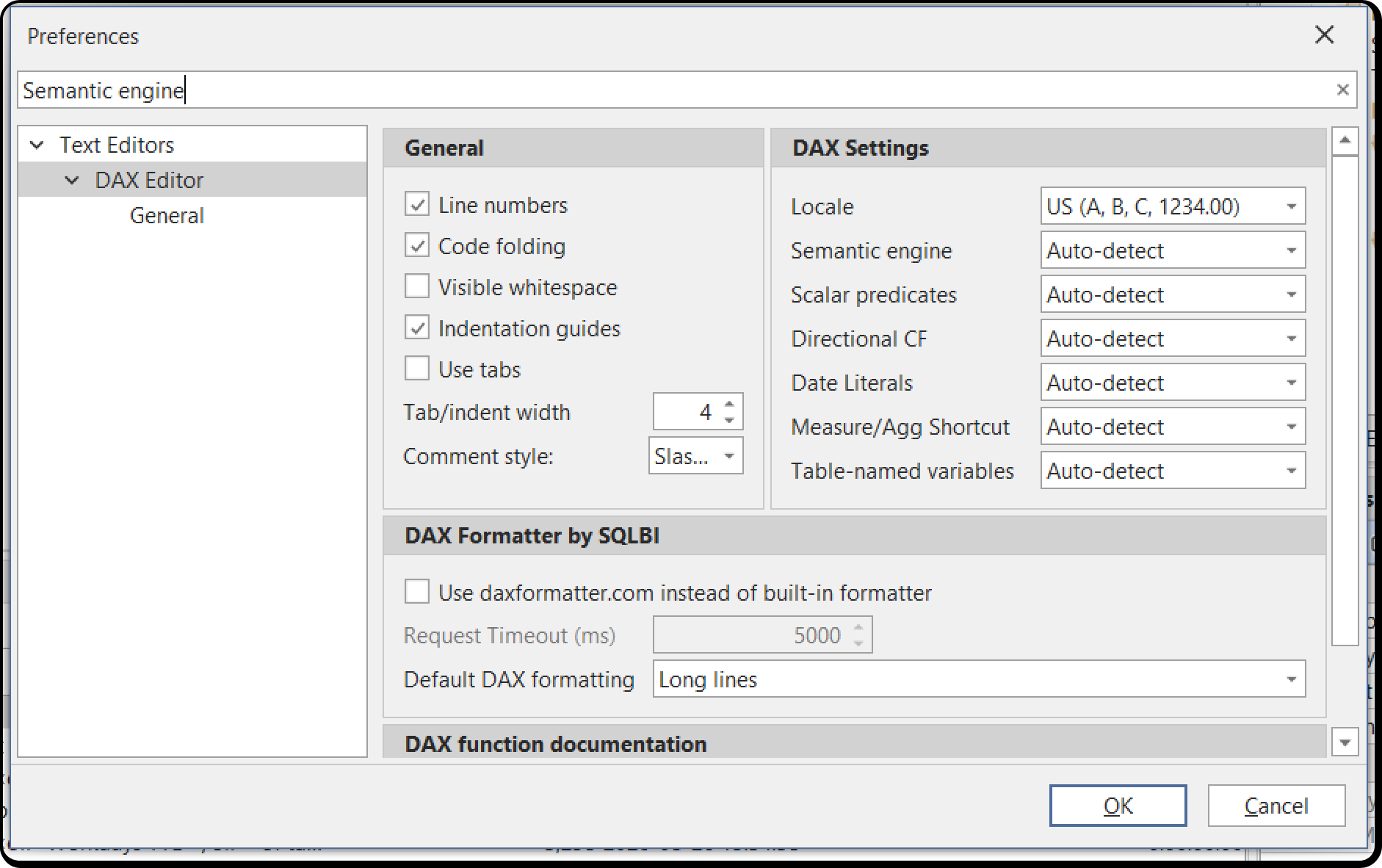
Tabular Editor 3's DAX editor is highly configurable. This page provides settings for general configuration of the DAX editor:
Line numbers (enabled)
Display line numbers in the left margin of the editor.
Code folding (enabled)
Enable collapsible regions in DAX code for better readability. Make sure you try out this feature!
Visible whitespace (disabled)
Show dots for spaces and arrows for tabs. This can be helpful when diagnosing indentation issues.
Indentation guides (enabled)
Display vertical lines to show indentation levels.
Use tabs (disabled)
When checked, a tab character (\t) is inserted whenever the TAB button is hit. Otherwise, a number of spaces corresponding to the Indent width setting is inserted.
Comment style (slashes)
DAX supports line comments that use slashes (//) or hyphens (--). This setting determines which style of comment is used when Tabular Editor 3 generates DAX code.
DAX function documentation
Use this setting to specify which URL to launch in the default web browser, whenever you hit F12 while the cursor is on a DAX function. Options include https://dax.guide (recommended) and Microsoft's official documentation.
DAX Settings
Locale
Specify the locale for DAX functions and formatting.
Analysis Services version settings
These settings are relevant only when Tabular Editor 3 cannot determine the version of Analysis Services used, as is the case when a Model.bim file is loaded directly. In this case, Tabular Editor tries to guess which version the model will be deployed to, based on the compatibility level. If Tabular Editor reports incorrect semantic/syntax errors, you may need to tweak these settings.
DAX Editor > Auto Formatting
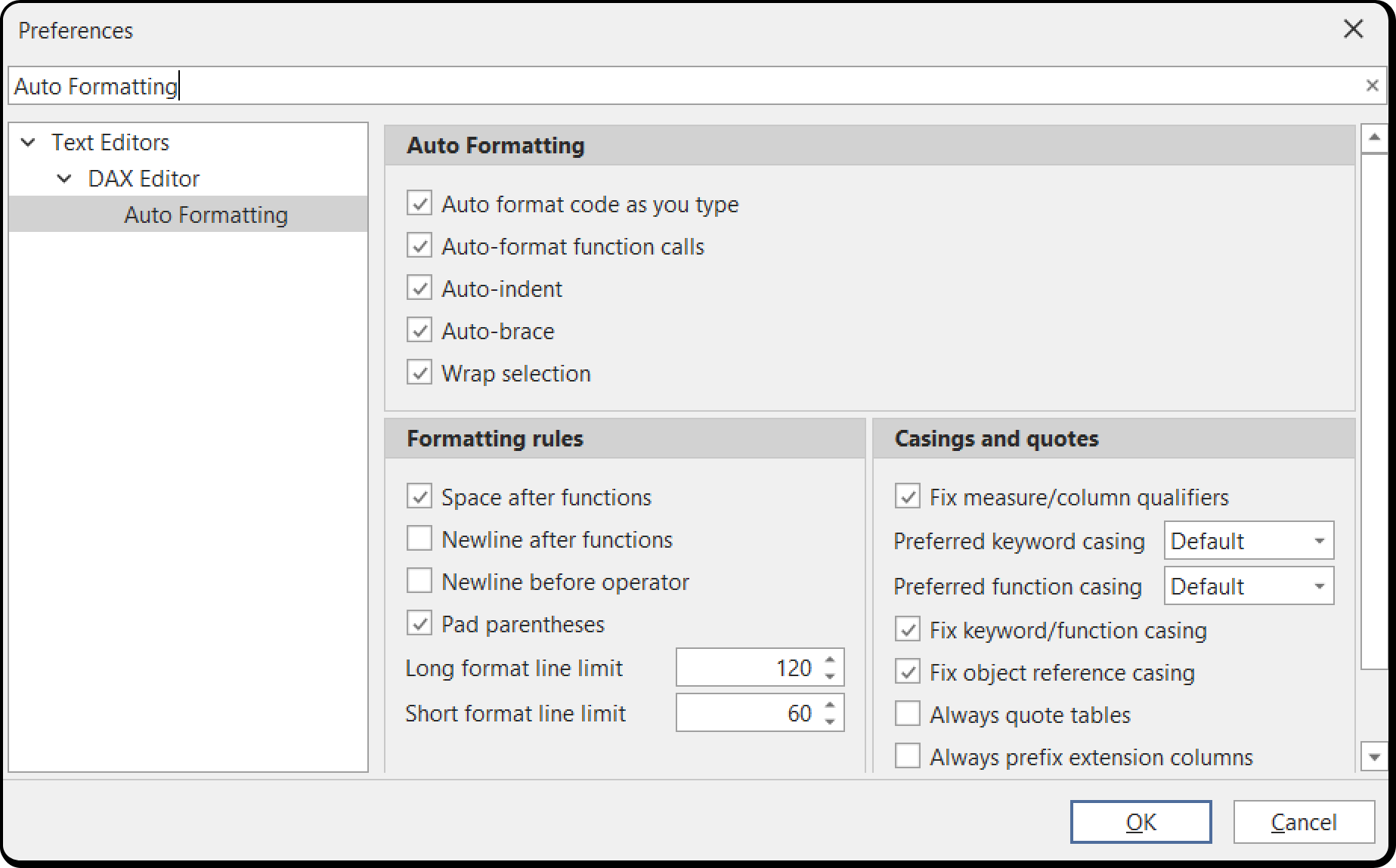
The DAX Editor is very powerful and helps you produce beautiful, readable DAX code as you type.
Auto format code as you type (enabled)
This option will automatically apply certain formatting rules whenever certain keystrokes occur. For example, when a parenthesis is closed, this feature will ensure that everything within the parentheses is formatted according to the other settings on this page.
Auto-format function calls (enabled)
This option specifically controls whether automatic formatting of function calls (spacing between arguments and parentheses) should happen when a parenthesis is closed.
Auto-indent (enabled)
This option automatically indents function arguments when a line break is inserted within a function call.
Auto-brace (enabled)
This option automatically inserts the closing brace or quote whenever an opening brace or quote is entered.
Wrap selection (enabled)
When enabled, this option automatically wraps the current selection with the closing brace, when an opening brace is entered.
Formatting Rules
These settings control how DAX code whitespace is formatted, both when auto-formatting occurs and when code is manually formatted.
Space after functions (disabled)
Newline after functions (disabled)
Applies only when a function call needs to be broken across multiple lines.
Pad parentheses (enabled)
Long format line limit (120)
The maximal number of characters to keep on a single line before an expression is broken across multiple lines, when using the Format DAX (long lines) option.
Short format line limit (60)
The maximal number of characters to keep on a single line before an expression is broken across multiple lines, when using the Format DAX (short lines) option.
Casings and Quotes
In addition to formatting the DAX code whitespace, Tabular Editor 3 can also fix object references and function/keyword casings.
Fix measure/column qualifiers (enabled)
When checked, table prefixes are automatically removed from measure references, and automatically inserted on column references.
Preferred keyword casing (UPPER)
This setting allows you to change the casing used for keywords, such as ORDER BY, VAR, EVALUATE, etc. It also governs the fixed keyword values auto-complete offers for functions that take them: ASC and DESC, KEEP, FIRST, LAST and DEFAULT, the CROSSFILTER directions and LOOKUP's EXPLICIT and INFERRED. Choose Capitalize first letter only to be offered Explicit rather than EXPLICIT.
Preferred function casing (UPPER)
This setting allows you to change the casing used for functions, such as CALCULATE(...), SUM(...), etc.
Fix keyword/function casing (enabled)
When checked, casing of keywords and functions is automatically corrected whenever code is auto-formatted or manually formatted.
Fix object reference casing (enabled)
DAX is a case-insensitive language. When this is enabled, references to tables, columns and measures are automatically corrected such that the casing matches the physical name of the referenced objects.
Always quote tables (disabled)
Referencing certain table names do not require surrounding single quotes in DAX. However, if you prefer table references to always be quoted, you can check this option.
Always prefix extension columns (disabled)
Extension columns can be defined without a table name. When checked, the DAX editor will always add the table prefix to an extension column.
DAX Editor > Code Assist
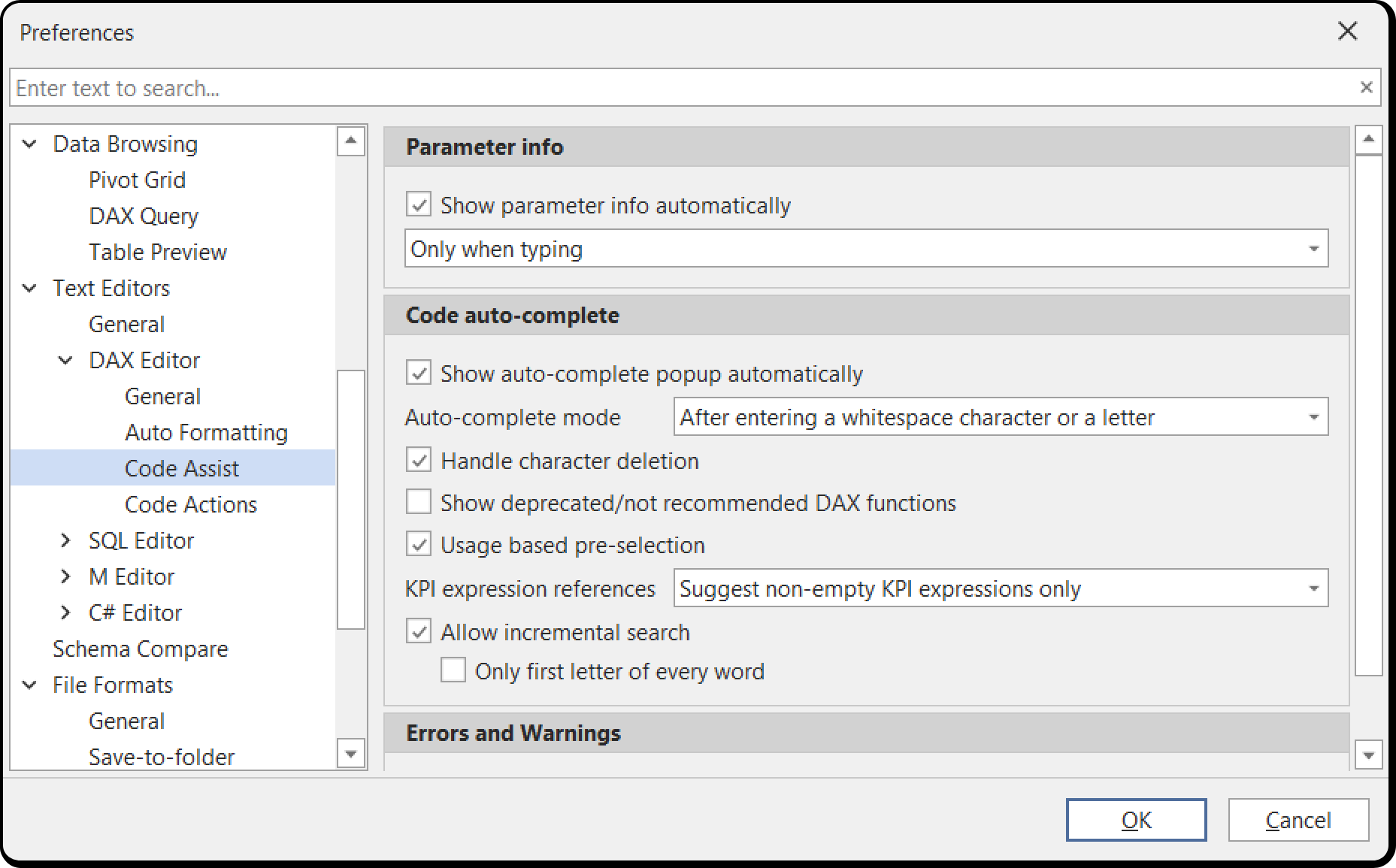
On this page, you can configure the two most important Code Assist features, namely calltips (aka. "parameter info") and auto-complete.
Auto-complete trigger
Control when the auto-complete list appears. Options include automatic triggering after typing a certain number of characters, or manual triggering with CTRL+Space.
Calltip trigger
Control when parameter information appears. Options include automatic triggering when opening a function parenthesis, or manual triggering.
Incremental search (enabled)
Enable fuzzy/incremental searching in auto-complete. This allows you to find items by typing parts of their name, not just the beginning.
Suggest table names (enabled)
Include table names in auto-complete suggestions.
Always quote table names (disabled)
Automatically quote table names in suggestions, even when not required.
Show first letter only (disabled)
Only show items starting with the typed letter. Disable this to use incremental search instead.
DAX Editor > Code Actions
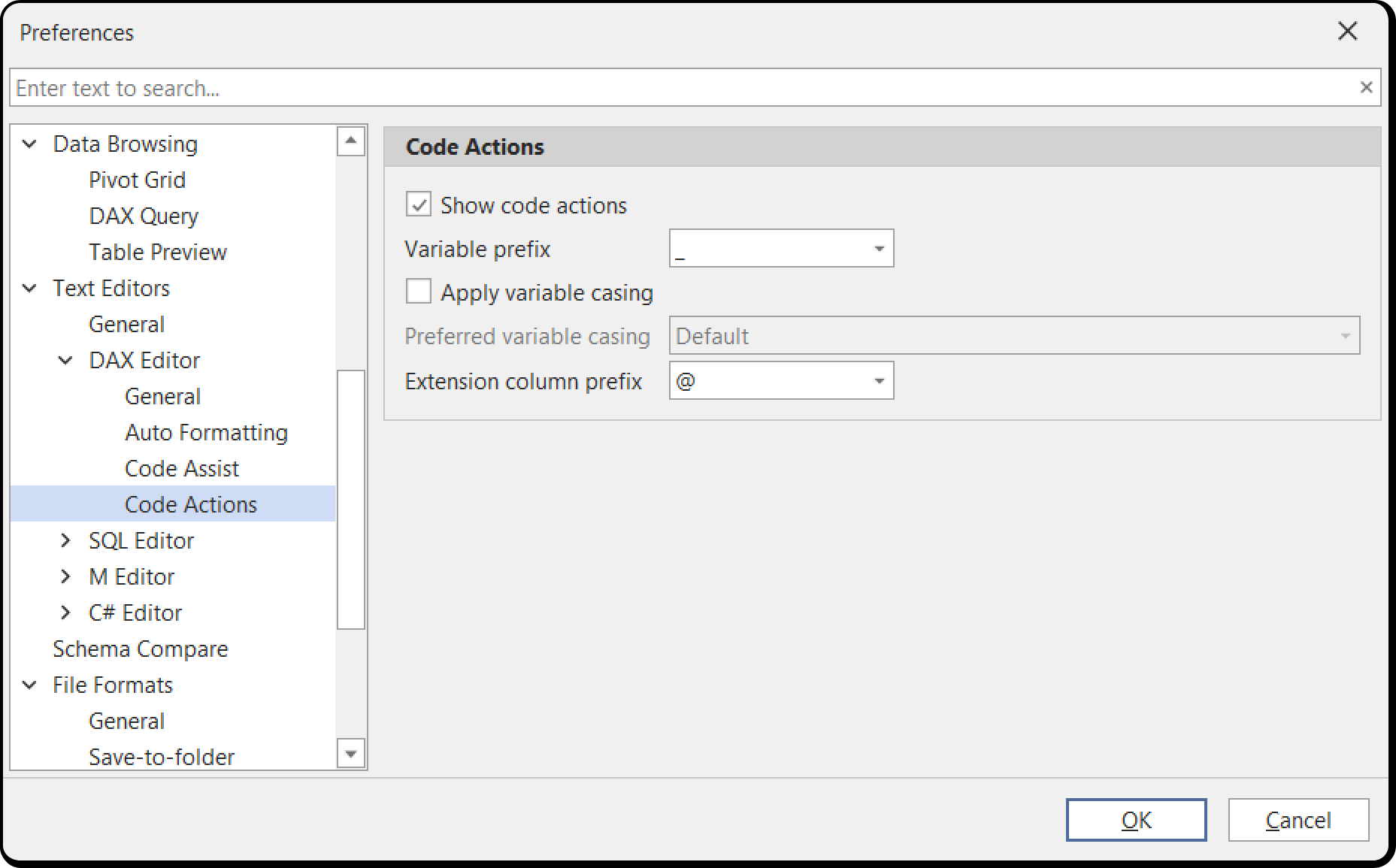
Configure automatic code improvement suggestions:
Variable prefixes
Define acceptable prefixes for variable names (e.g., _, __, $, var_, var, v_, v, VAR_). Code actions will suggest adding these prefixes to variable names that don't follow the convention.
Column prefixes
Define acceptable prefixes for temporary column names (e.g., @, $, _, x, x_). Code actions will suggest adding these prefixes to temporary column names that don't follow the convention.
SQL Editor / M Editor / C# Editor
Similar configuration options are available for SQL, M (Power Query), and C# script editors, including:
- Syntax highlighting and color schemes
- Auto-formatting options
- Code assist and auto-complete features
- Comment styles and indentation preferences
Each editor can be customized independently to match your preferred coding style.
DAX Formatter
DAX formatter consent (disabled)
Agree to send DAX code to the external DAX formatting service (www.daxformatter.com). When enabled, you can use this service to format DAX code according to community standards.
DAX formatter request timeout (5000)
Timeout in milliseconds for DAX formatter requests. Increase this if you frequently get timeout errors when using the DAX formatter.
DAX Optimizer Integration
Configure integration with DAX Optimizer (Enterprise Edition only):
Connect automatically (null/prompt)
Automatically connect to DAX Optimizer when available. When not set, you will be prompted the first time.
Obfuscate VPAX files (enabled)
Anonymize model metadata when sending to DAX Optimizer. This protects sensitive information like table and column names while still allowing analysis.
Obfuscation dictionary directory (%LocalAppData%\TabularEditor3\DaxOptimizer)
Specify where obfuscation dictionaries are stored. The dictionary maintains consistent obfuscation across multiple analyses.
VertiPaq Analyzer
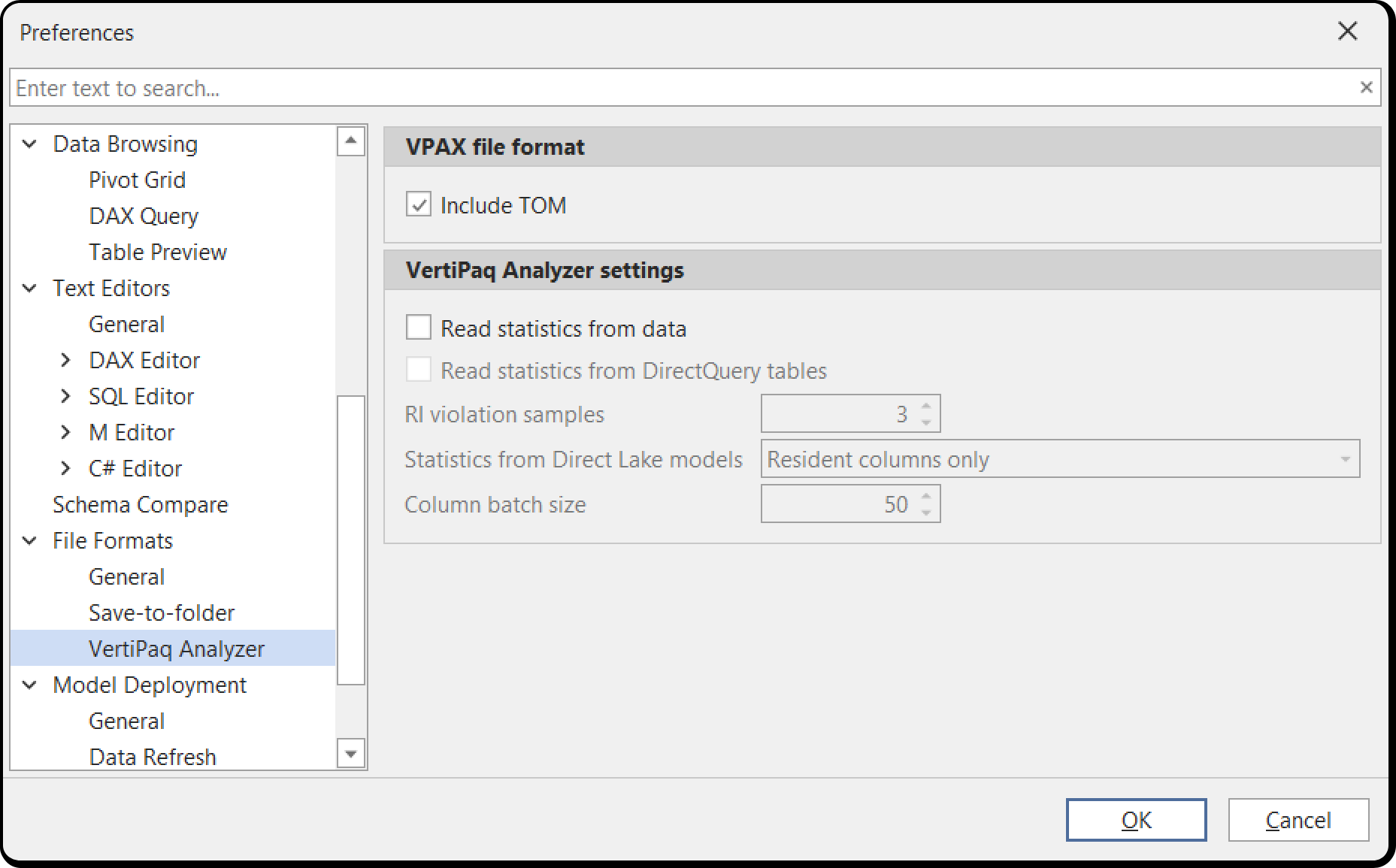
Include TOM metadata (enabled)
Include Tabular Object Model metadata in VertiPaq Analyzer statistics. This provides richer information about your model structure.
Read stats from data (enabled)
Read statistics by scanning actual data (more accurate but slower). When disabled, only metadata is used.
Direct Lake extraction mode (ResidentOnly)
How to extract statistics from Direct Lake models:
- ResidentOnly: Only analyze data currently loaded in memory
- All: Include non-resident data (slower, may trigger data loading)
Read stats from Dynamic Management Views (disabled)
Use DMVs to gather statistics (faster but less accurate). This is an alternative to reading from data.
Relationship sample rows (3)
Number of rows to sample when analyzing relationships. Higher values provide more accuracy but take longer.
Column batch size (50)
Number of columns to analyze in each batch. Adjust this based on your model size and performance requirements.
Power BI Integration
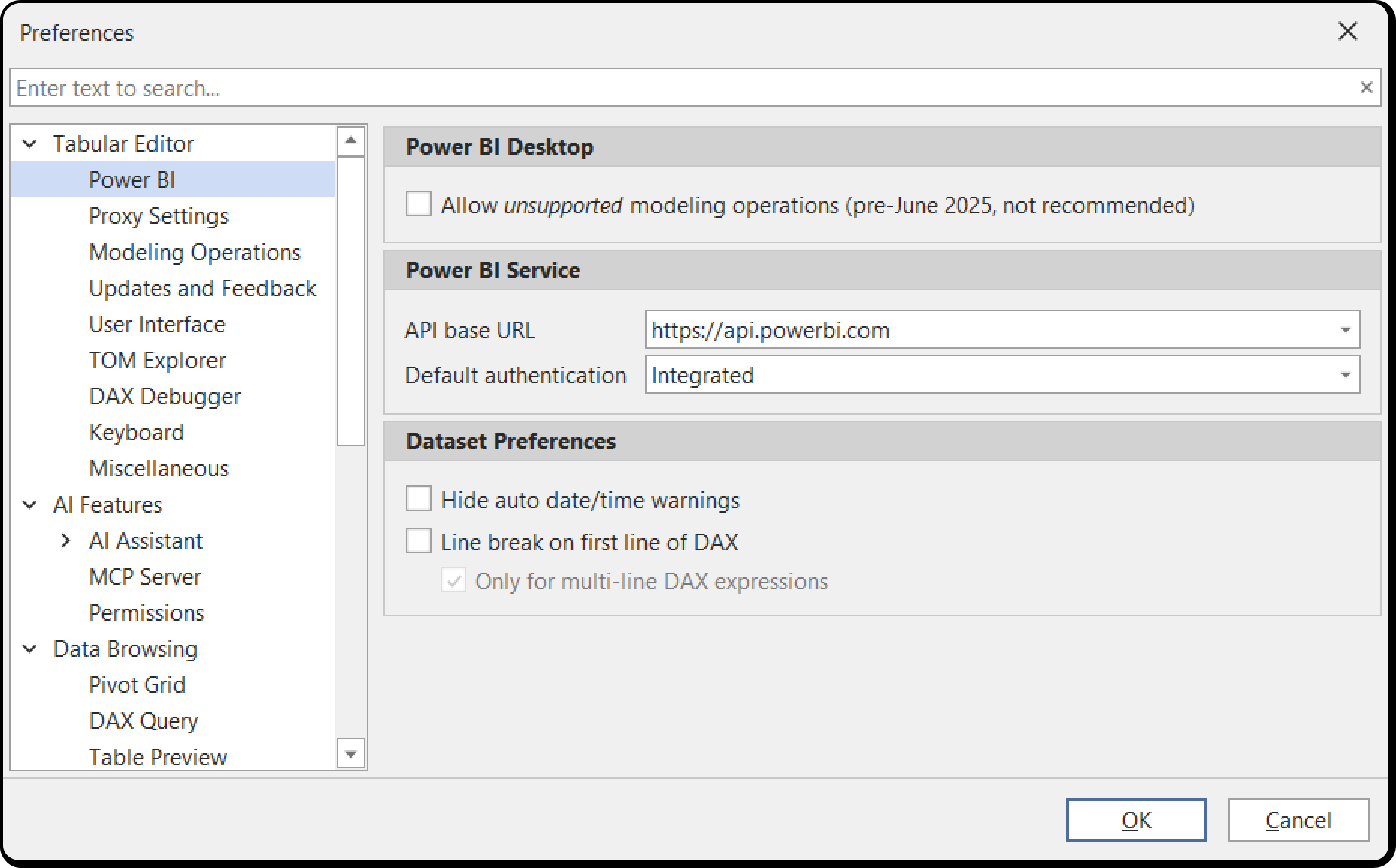
Power BI endpoint base URL (https://api.powerbi.com)
The base URL for Power BI API calls. Change this if you're working with a sovereign cloud or custom environment.
Fabric endpoint base URL (https://api.fabric.microsoft.com)
The base URL for Microsoft Fabric API calls. Change this if you're working with a sovereign cloud or custom environment.
Use embedded browser for authentication (enabled)
Use the embedded browser for OAuth authentication instead of the system browser. This provides a more integrated experience.
Proxy Settings
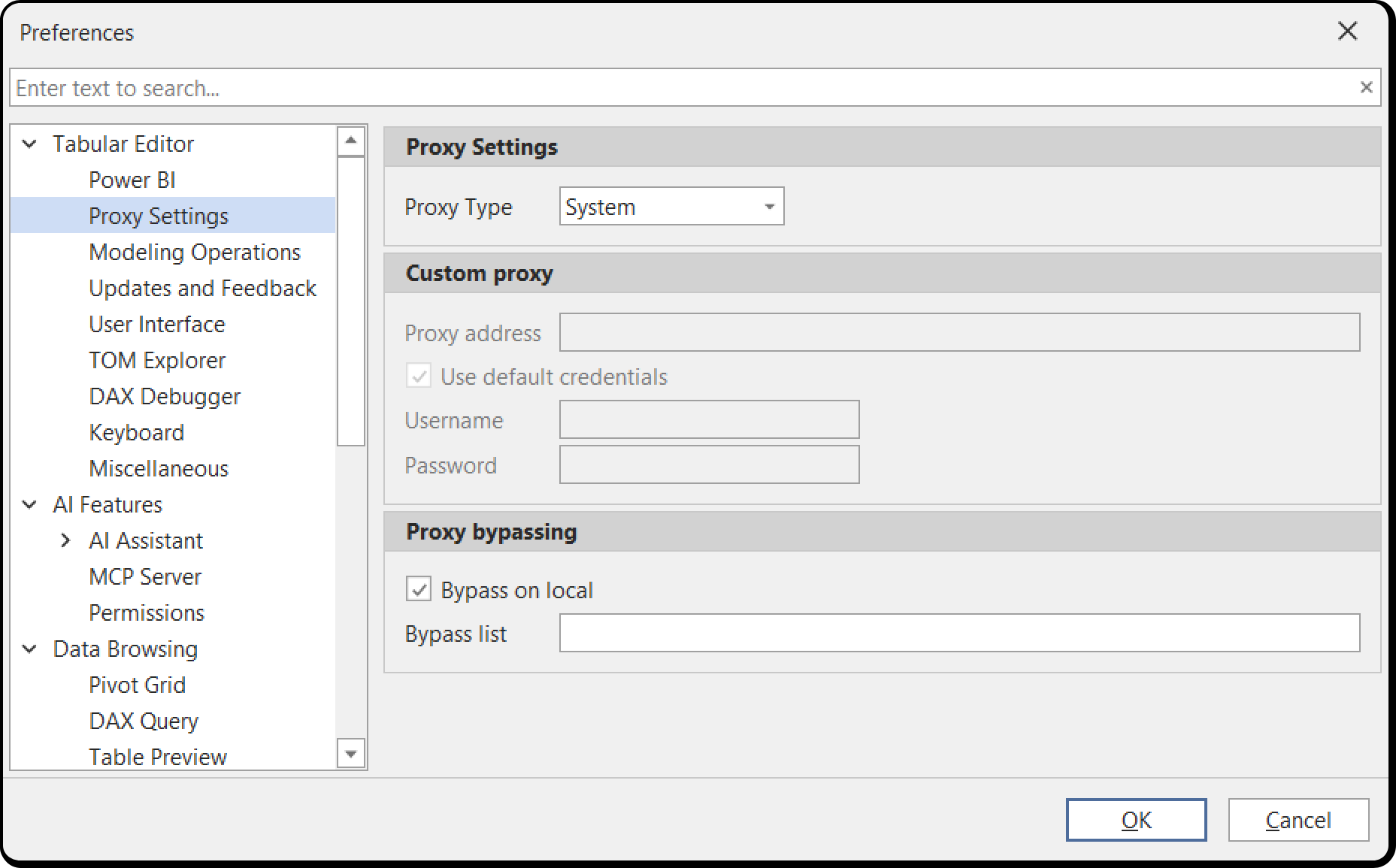
Proxy type (None)
Choose between:
- None: No proxy configuration
- System: Use system proxy settings
- Custom: Specify custom proxy configuration
Proxy address
The address of the proxy server (e.g., http://proxy.company.com:8080).
Proxy user
Username for proxy authentication if required.
Proxy password
Password for proxy authentication (stored encrypted).
Use default credentials (enabled)
Use the current Windows credentials for proxy authentication. This implements the same behavior as Power BI Desktop.
Bypass proxy on local (enabled)
Bypass the proxy for local addresses. This is recommended for performance.
Proxy bypass list
List of addresses that should bypass the proxy (e.g., localhost;*.company.local).
Next Steps
For a user-friendly guide to the most commonly adjusted preferences, see the getting started guide (Personalizing TE3)[xrefid: personalizing-te3].